Categories
 Profile
 Contacts
 Notes & Cloud Files
 CRM
CRM Billing
 Quote Flow
 Tasks
Tasks ClockEase & Payroll
 Phone Hub
 Booking Hub
 Fleet Hub
 HireFlow
 Cybix AI
 Connect
 Administration
 Sales & Operations
 Video Meeting
- Cybix App
- About the development company.
- About my Membership
1. Home Menu
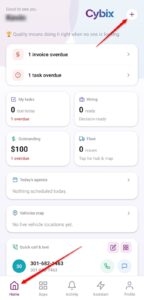
It is your daily control center. Upon opening the app, this menu provides an immediate executive summary of pending tasks and finances.
-
Critical Alerts: At the top, you will see immediate action cards such as Invoice overdue or Task overdue.
-
Quick Summary Modules: Dynamic panels showing the count of My tasks due today, hiring pipelines (Hiring), outstanding financial balances (Outstanding), and operational fleet tracking (Fleet).
-
Agenda & Maps: Integrated sections to check Today’s agenda and the live location tracking of your vehicles (Vehicles map).
-
Quick Call & Text: Located at the bottom of the Home screen, it allows you to initiate outbound phone calls or text messages to your recent contacts with a single tap.
-
Quick Action Button (
+): Positioned at the top right corner, this acts as a universal shortcut to quickly add new widgets or edit current widgets order
2. Apps Menu
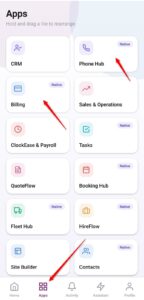
This menu centralizes all the platform’s operational tools in a grid layout. You can hold and drag any module to rearrange the modules according to your daily workflow priorities.
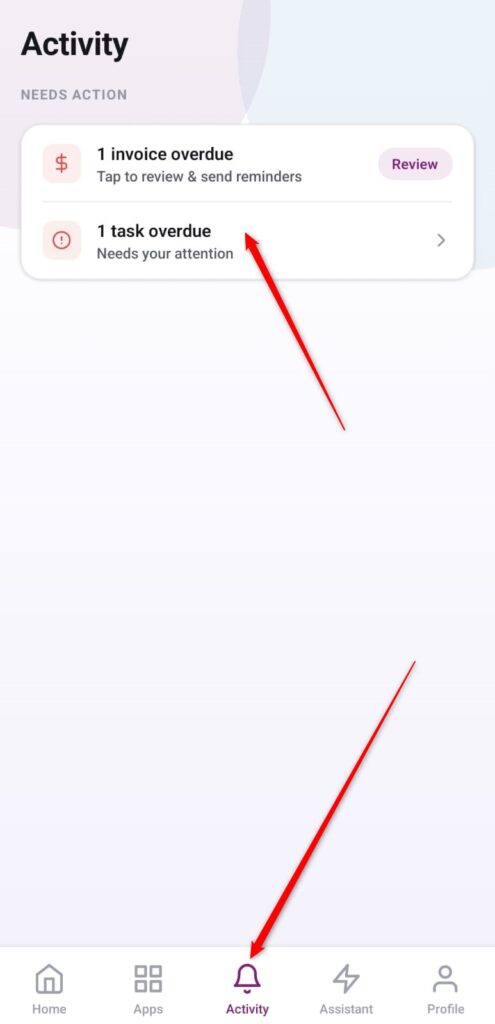
3. Activity Menu
The Activity section acts as a notification center that collects all critical system events that require urgent attention under the Needs Action section.
4. Profile Menu
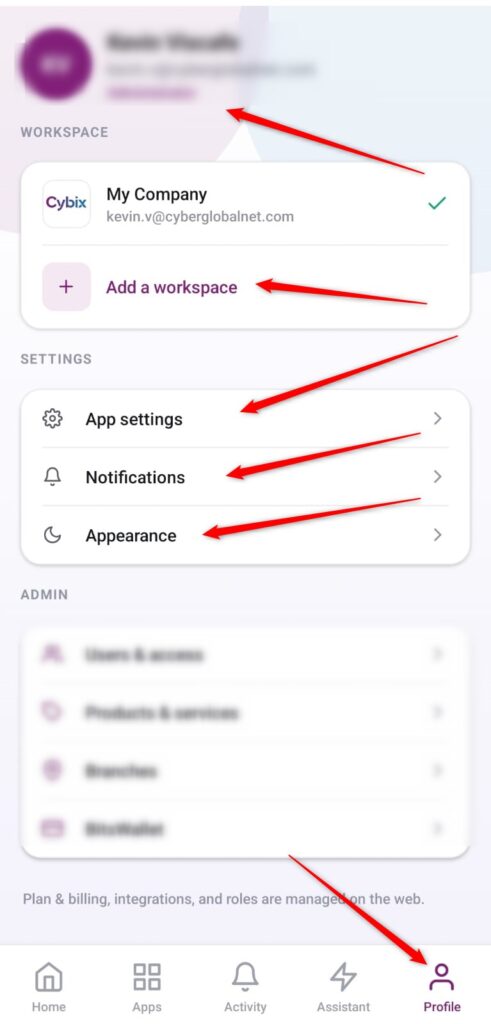
This menu allows you to manage your identity on the platform, switch between corporate workspaces, and personalize the user interface of your mobile app.
-
User Info: Displays your avatar, full name, email address, and your assigned administrative role within the company at the top.
-
Workspace: Shows the specific workspace you are currently operating in (marked with a green checkmark). Includes an + Add a workspace option to link or build a new company Cybix instalation.
-
Settings:
-
App settings: General technical configuration parameters for the mobile app layout.
-
Notifications: Granular control over system alerts, push notifications, and hardware vibration configurations.
-
Appearance: Visual customization, allowing you to manually toggle Light Mode, Dark Mode, or adapt it to your mobile operating system’s automatic theme settings.
-
- Admin: Restricted access partitions based on your security role (such as Users & access, Products & services, Branches, or BitsWallet) to modify the corporate master dashboard layout settings.