Categories
 Profile
 Contacts
 Notes & Cloud Files
 CRM
CRM Billing
 Quote Flow
 Tasks
Tasks ClockEase & Payroll
 Phone Hub
 Booking Hub
 Fleet Hub
 HireFlow
 Cybix AI
 Connect
 Administration
 Sales & Operations
 Video Meeting
- Cybix App
- About the development company.
- About my Membership
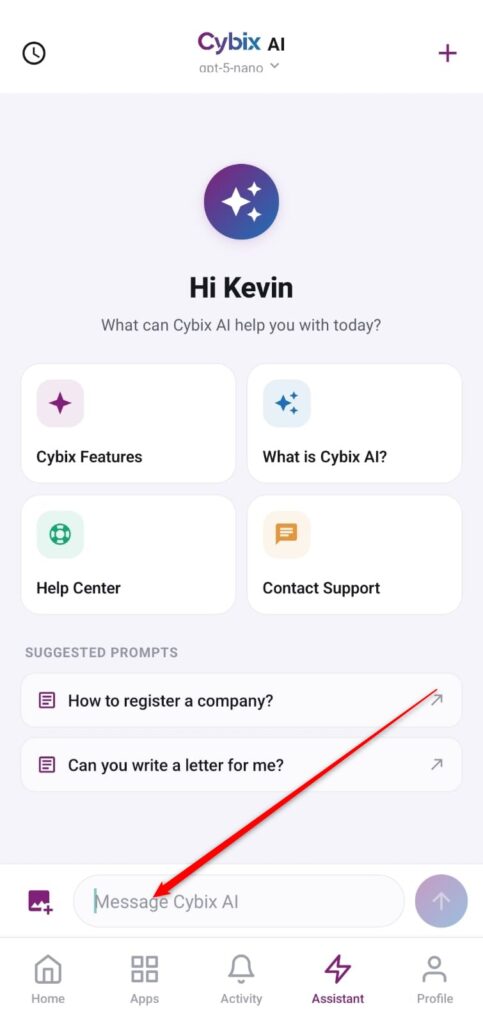
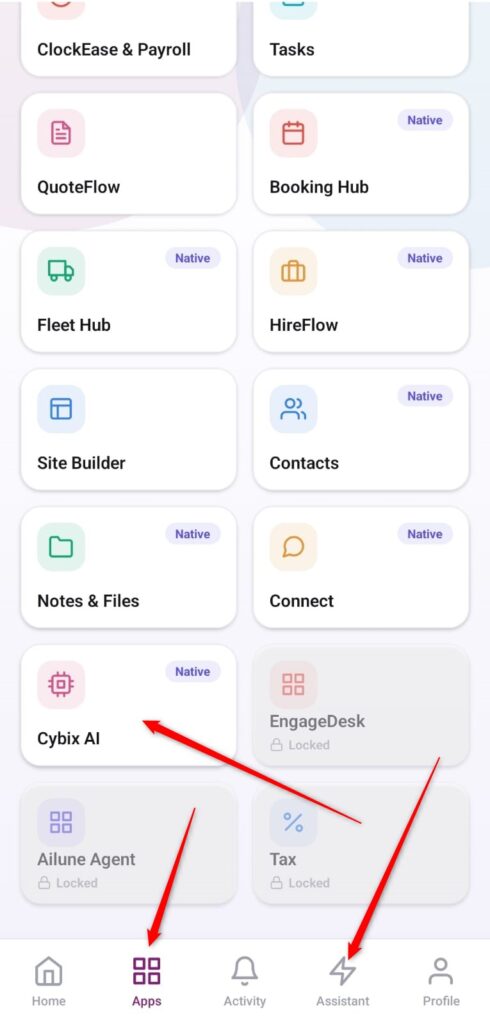
- Access the AI Assistant: You can pull up the assistant screen layout using two different paths from your navigation view:
-
-
Tap the lightning bolt Assistant icon shortcut situated directly on the bottom navigation bar.
-
Alternatively, tap into your general Apps library grid and select the microchip card marked Cybix AI.
-
-
Deploy Quick Presets: To run routine evaluations, you can tap any central guidance tile (such as Help Center) or select ready-made queries inside the SUGGESTED PROMPTS log area (such as “Can you write a letter for me?”) to send it instantly.
-
Draft a Tailored Instruction: To input an individual prompt script, tap inside the lower horizontal composition bar labeled Message Cybix AI and write out your query context.
-
Upload Media Assets or Photos: If you require the neural engine to analyze an image or asset file, tap the small image card graphic featuring the
+sign positioned at the far left of the text bar area. -
Send: Once your message body is finalized, tap the circular purple action button containing the upward arrow icon on the right to process your query and stream the response.