Categories
 Profile
 Contacts
 Notes & Cloud Files
 CRM
CRM Billing
 Quote Flow
 Tasks
Tasks ClockEase & Payroll
 Phone Hub
 Booking Hub
 Fleet Hub
 HireFlow
 Cybix AI
 Connect
 Administration
 Sales & Operations
 Video Meeting
- Cybix App
- About the development company.
- About my Membership
Follow these steps to customize the welcome message your callers will hear whenever you are unavailable to take a call:
-
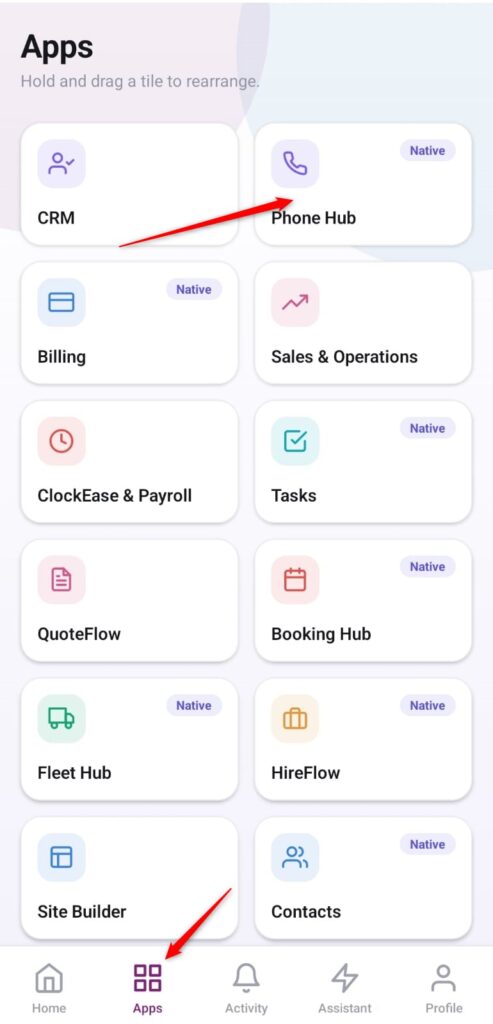
Open the App Directory: On the bottom navigation bar of the application, tap the Apps menu button (represented by the four-square icon).
-
Access the Telephony Center: Within the grid checklist, locate and tap the Phone Hub module card.
-
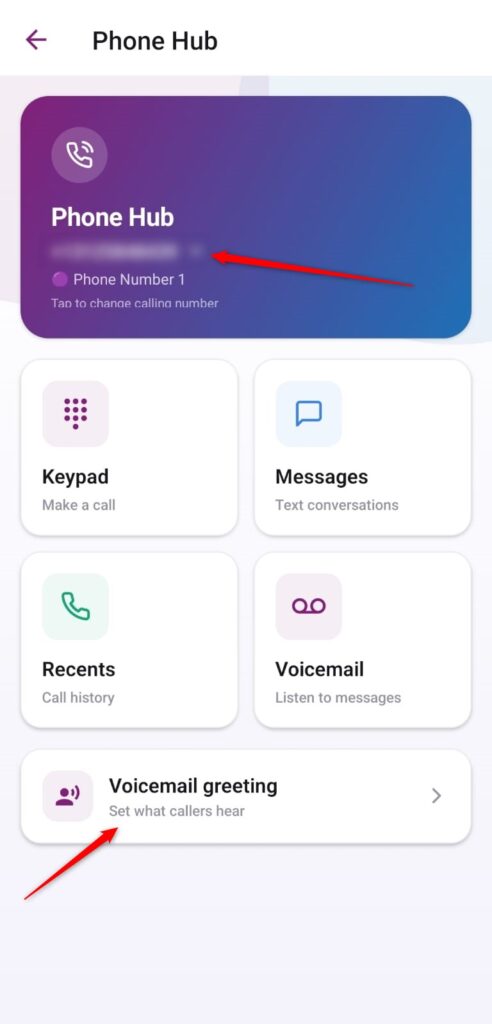
Open Greeting Settings: Scroll to the bottom area of the screen, locate the row labeled Voicemail greeting (Set what callers hear), and tap the arrow indicator.
-
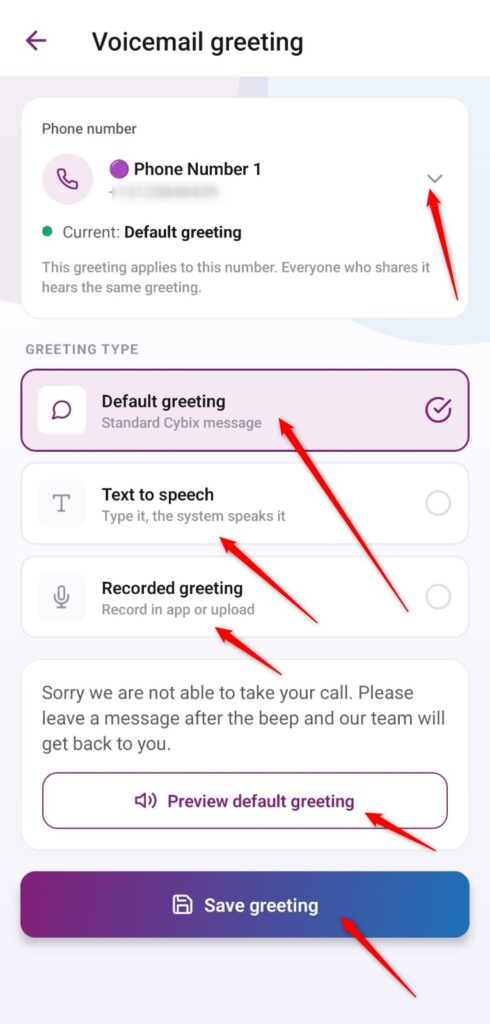
Select Your Business Number: If your account manages multiple lines, tap the dropdown arrow in the top card section to assign the configuration to the correct number designation (e.g., Phone Number 1).
-
Choose Your Greeting Type: Tap the selection circle on the right side of your preferred delivery layout method:
-
Default greeting: Implements the platform’s baseline, pre-recorded Cybix message audio stream.
-
Text to speech: Allows you to type a custom written script so the system can dynamically vocalize it.
-
Recorded greeting: Enables you to record your own custom voice track in-app or upload an existing audio file.
-
-
Preview and Save: If you are using the default option, you can click the Preview default greeting action bar to review the playback sound. Once finalized, tap the prominent blue Save greeting button at the bottom of the interface to deploy the settings.