Categories
 Profile
 Contacts
 Notes & Cloud Files
 CRM
CRM Billing
 Quote Flow
 Tasks
Tasks ClockEase & Payroll
 Phone Hub
 Booking Hub
 Fleet Hub
 HireFlow
 Cybix AI
 Connect
 Administration
 Sales & Operations
 Video Meeting
- Cybix App
- About the development company.
- About my Membership
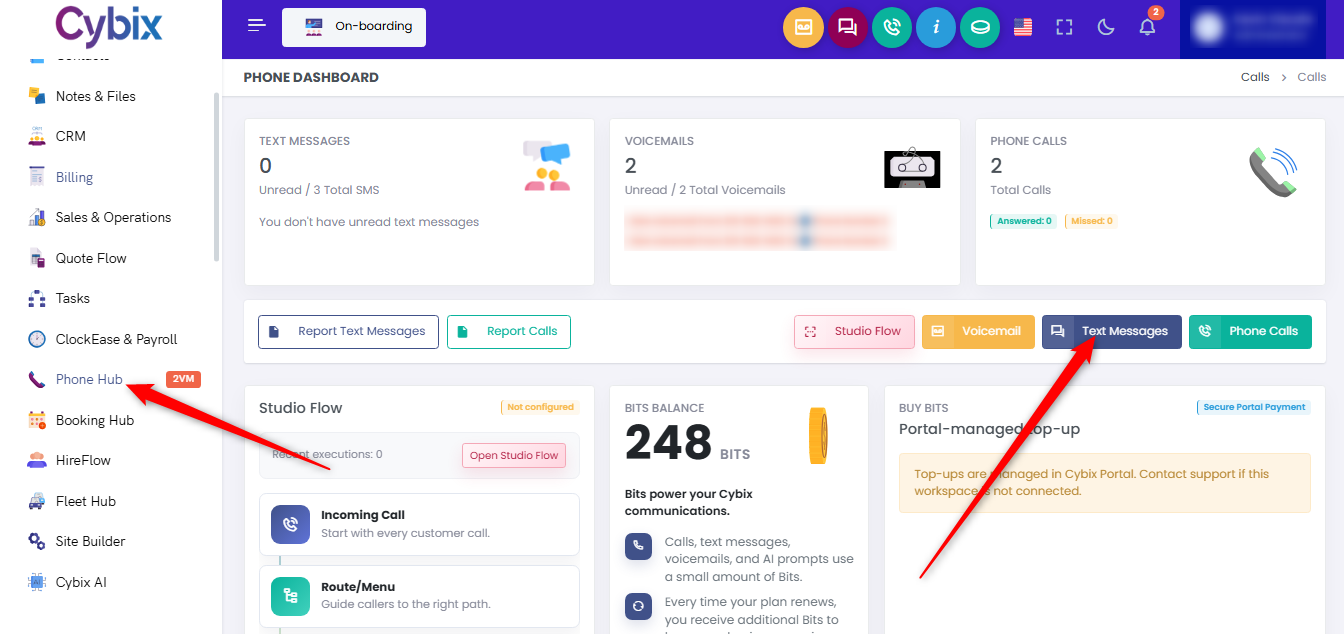
From the left sidebar, go to the Phone Hub module and click on Text Messages.
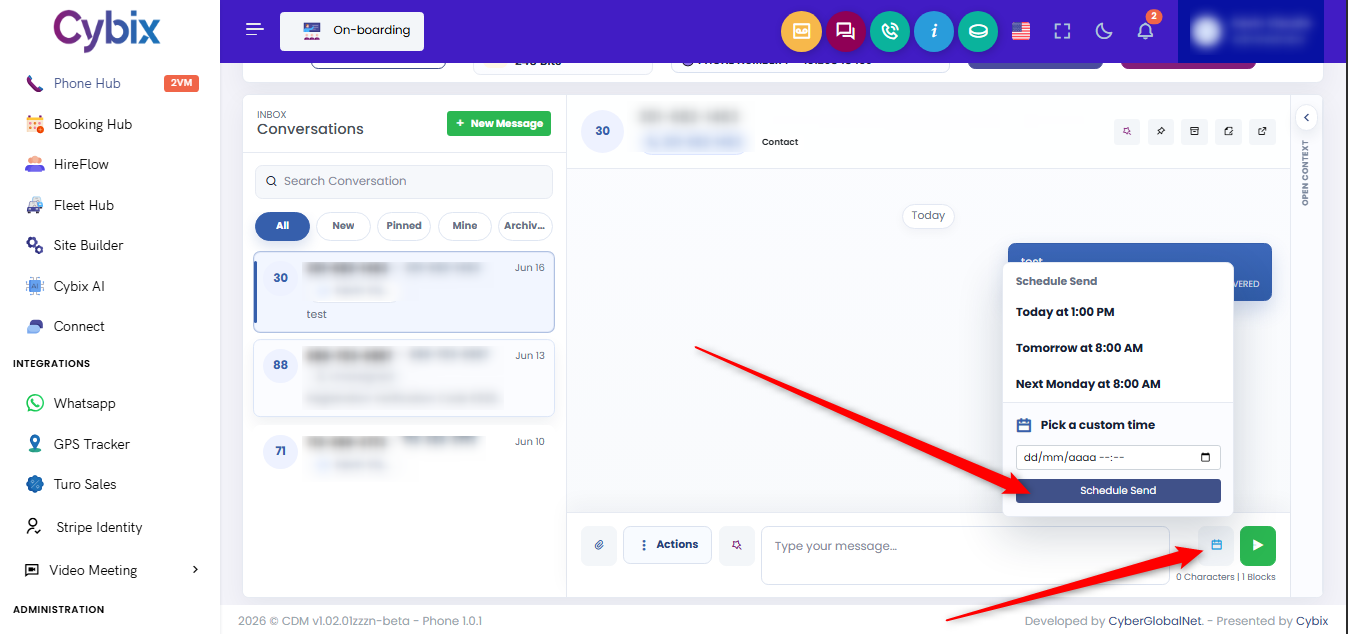
Open your client’s chat thread, type your text in the message composition field, and follow these steps to schedule its release:
-
Open the scheduler tool: Instead of hitting the green play/send button, click the gray calendar icon situated right next to the send arrow.
-
Choose a quick preset: A Schedule Send context window will overlay your workspace. You can click one of the default automated choices if they match your timeframe:
-
Today at 1:00 PM
-
Tomorrow at 8:00 AM
-
Next Monday at 8:00 AM
-
-
Set a tailored date and time: If you require a custom delivery window, click inside the Pick a custom time input field to choose a specific day, month, year, and execution hour from the calendar dropdown.
-
Finalize the schedule: Once the correct timeline parameters are active, click the dark blue Schedule Send action button inside the popup menu to safely store the text in your outbound deployment queue.