Categories
 Agentic Ailune
 Profile
 Contacts
 Notes & Cloud Files
 CRM
CRM Billing
 Quote Flow
 Tasks
Tasks ClockEase & Payroll
 Phone Hub
 Booking Hub
 Fleet Hub
 HireFlow
 Cybix AI
 Connect
 Administration
 Sales & Operations
 Video Meeting
- Cybix App
- About the development company.
- About my Membership
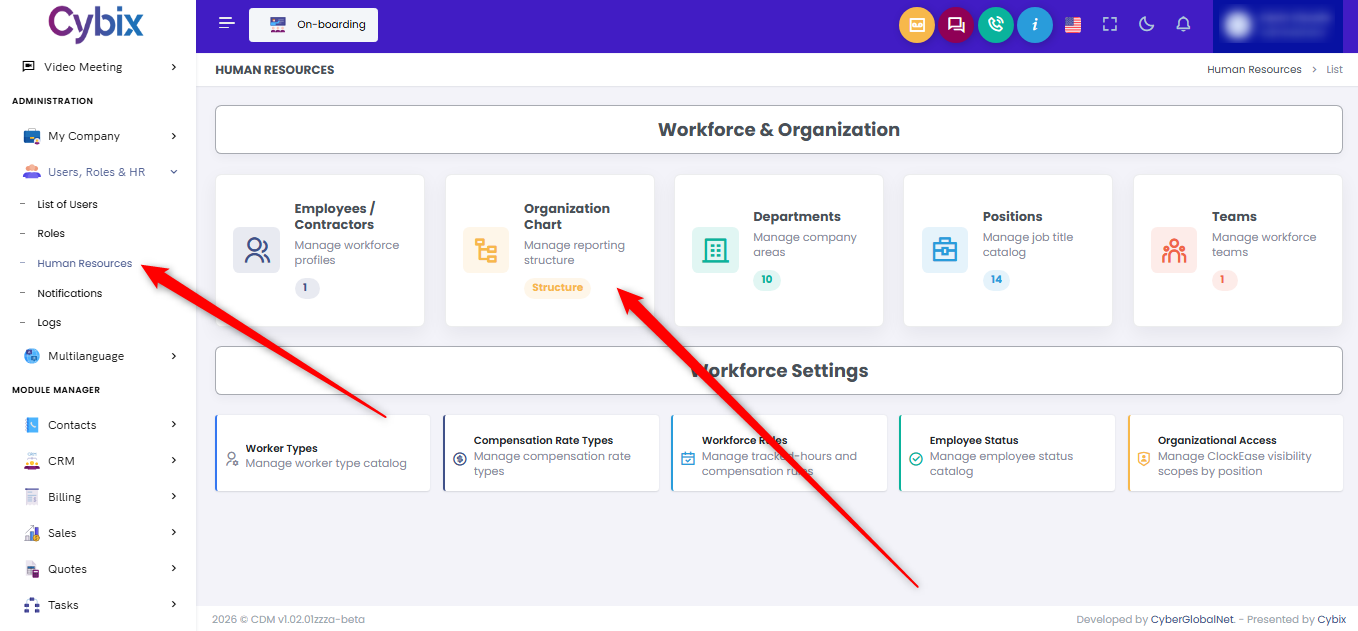
From the left sidebar, expand the Users, Roles & HR section and click on the Human Resources option. Once inside the workspace modules, locate and click on the Organization Chart card to open the corporate hierarchy visualizer.
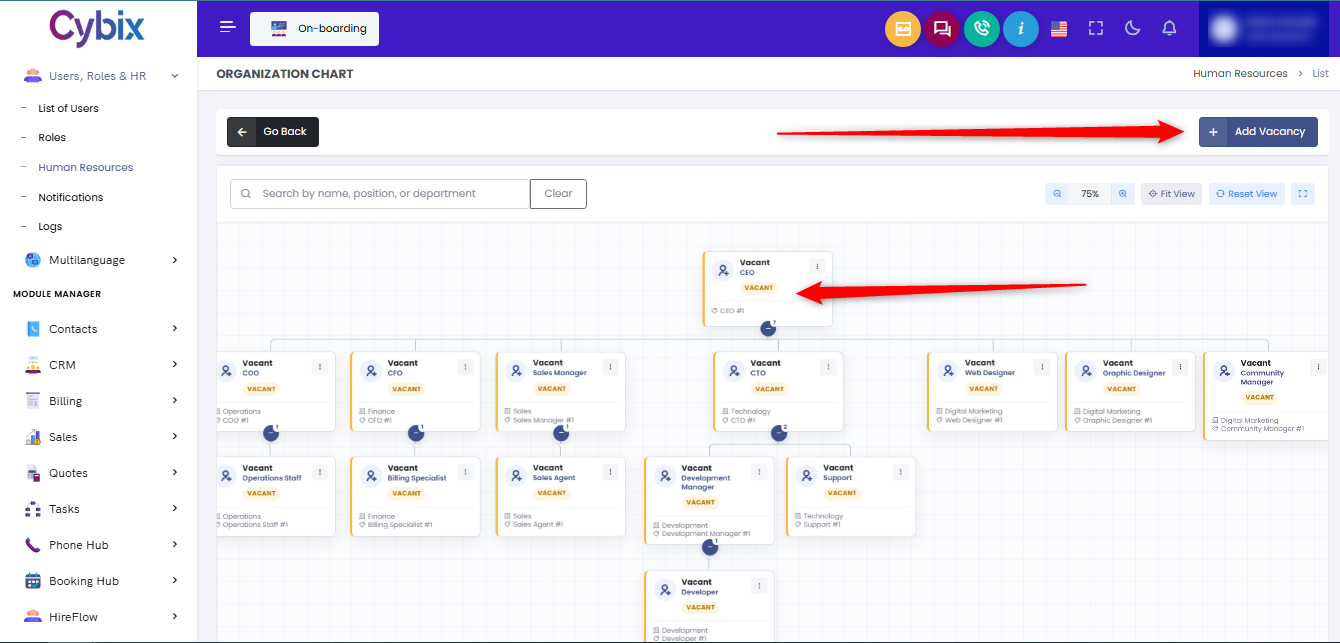
To introduce a new position node into the corporate structure, navigate to the top right area of the control screen. Click the dark blue Add Vacancy button to launch the configuration setup for the new hierarchical role.
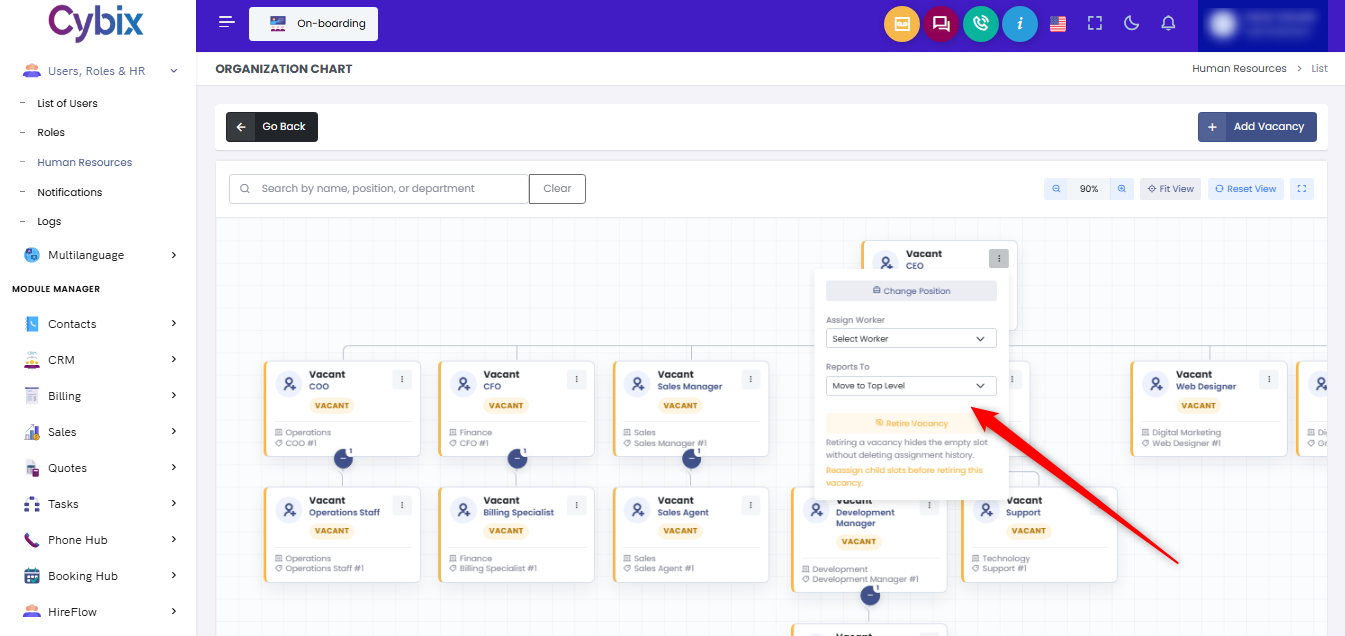
Alternatively, to modify any existing position card within the visual flow diagram, locate the specific role node and click on the three-dot options menu icon found in its top right corner. This action will trigger a contextual settings menu directly overlaying the chart workspace.
Within this settings menu, adjustments can be made to the role’s structural alignment by utilizing the “Assign Worker” dropdown menu to attach a specific personnel file, or by changing reporting lines using the “Reports To” selection tool. If a role is no longer needed in the active organizational tree, locate the orange Retire Vacancy button at the bottom of the options menu to hide the empty slot without deleting its historical placement logs.