Categories
 Profile
 Contacts
 Notes & Cloud Files
 CRM
CRM Billing
 Quote Flow
 Tasks
Tasks ClockEase & Payroll
 Phone Hub
 Booking Hub
 Fleet Hub
 HireFlow
 Cybix AI
 Connect
 Administration
 Sales & Operations
 Video Meeting
- Cybix App
- About the development company.
- About my Membership
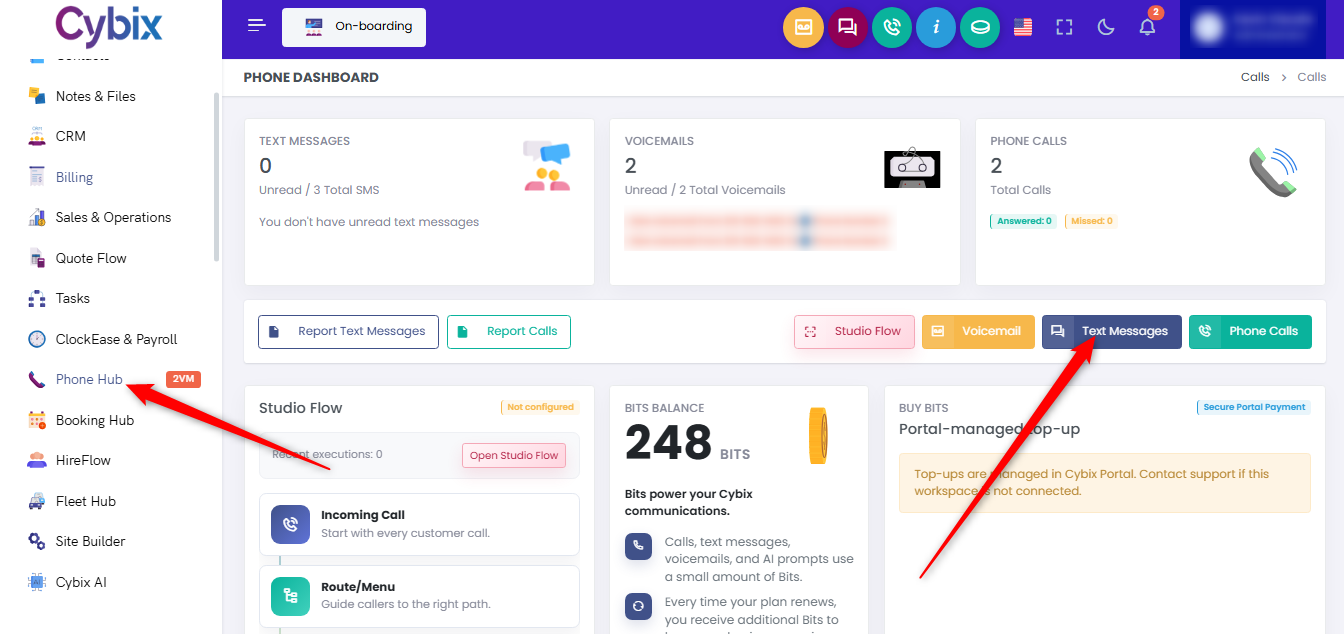
From the left sidebar, click on the Phone Hub module, press the dark blue Text Messages button to open your conversation inbox.
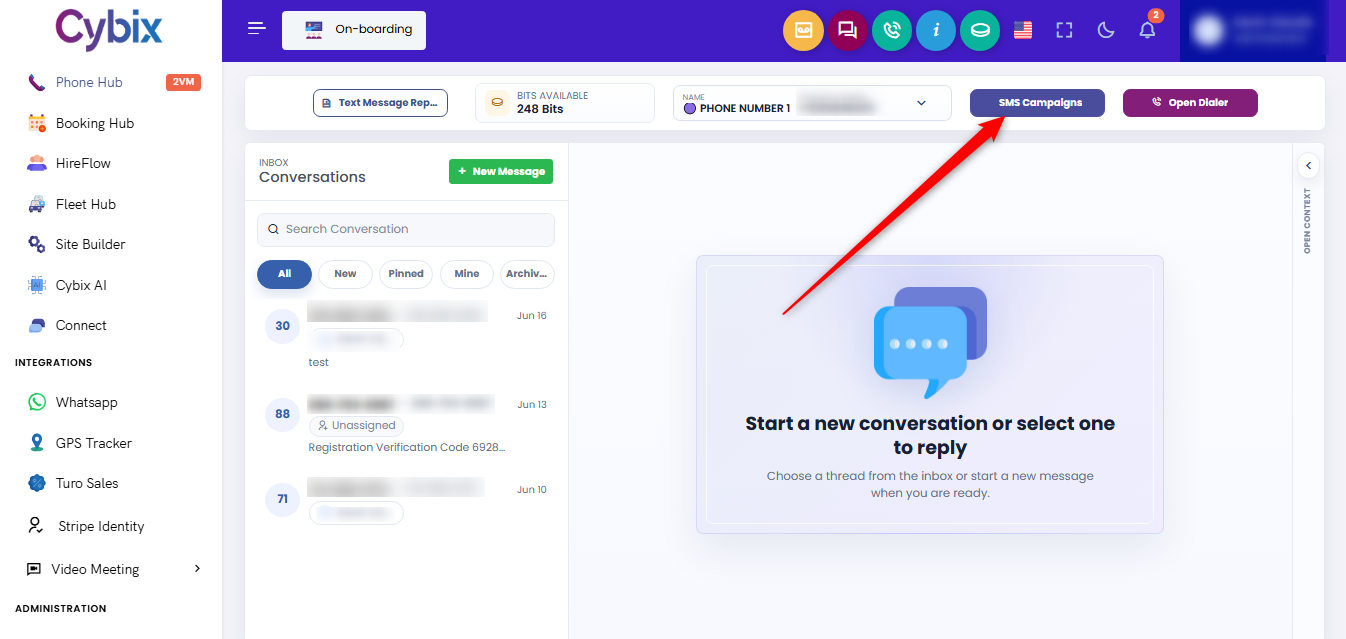
On the messages view, press the blue SMS Campaigns button to open your mass messaging control area.
To build a new blast, click the blue + Create Campaign button sitting at the upper-right corner of the interface. Follow these step-by-step instructions to fill out the mandatory parameters marked inside the red box:
-
Campaign Name: Type a unique, recognizable label to track this outreach in your history logs.
-
Select Line: Click the dropdown selector to assign the specific business phone line that will deploy the outbound texts.
-
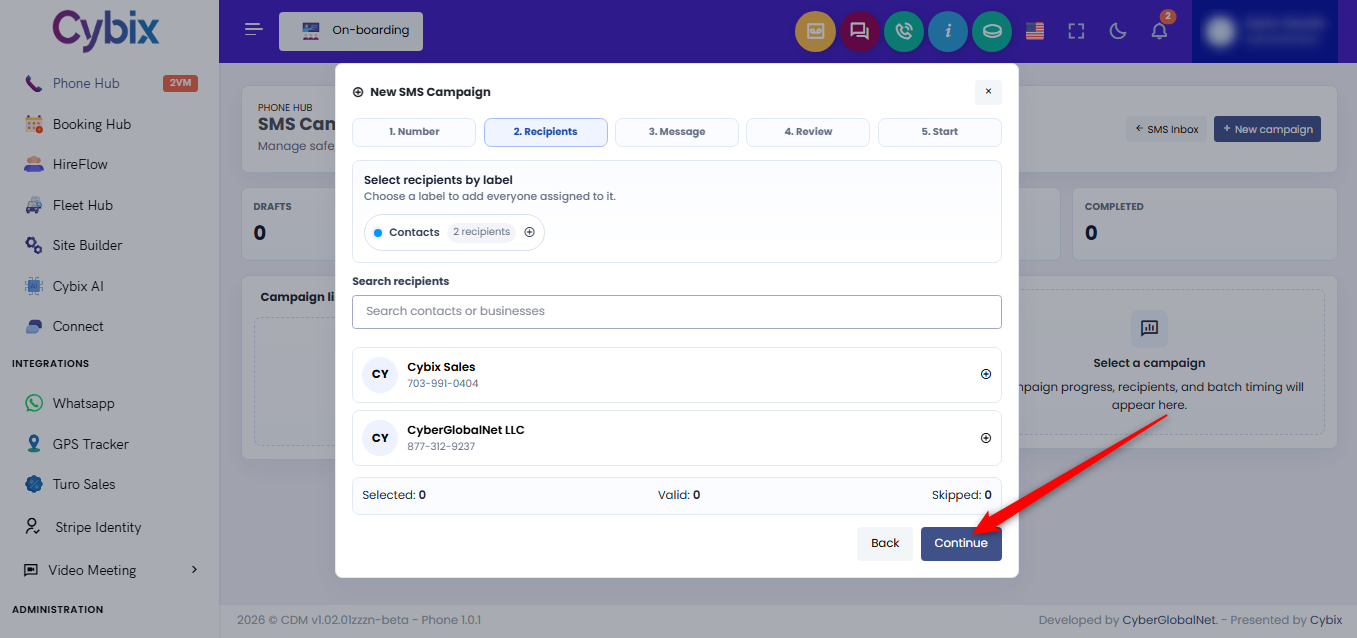
Select Contacts: Choose the targeted list, tags, or specific contact entries destined to receive this broadcast.
-
Write your message: Draft your text narrative inside the main editing box. Use the Insert Tags utility tool to personalize elements dynamically, like the client’s first name.
-
Scheduling and Delivery: Determine if you want to push the broadcast immediately or schedule it for a later date and time execution. Once finalized, click Send Campaign to initiate the delivery sequence.