Categories
 Profile
 Contacts
 Notes & Cloud Files
 CRM
CRM Billing
 Quote Flow
 Tasks
Tasks ClockEase & Payroll
 Phone Hub
 Booking Hub
 Fleet Hub
 HireFlow
 Cybix AI
 Connect
 Administration
 Sales & Operations
 Video Meeting
- Cybix App
- About the development company.
- About my Membership
Follow these steps to open a conversation thread and dispatch a text message (SMS) from your mobile interface:
-
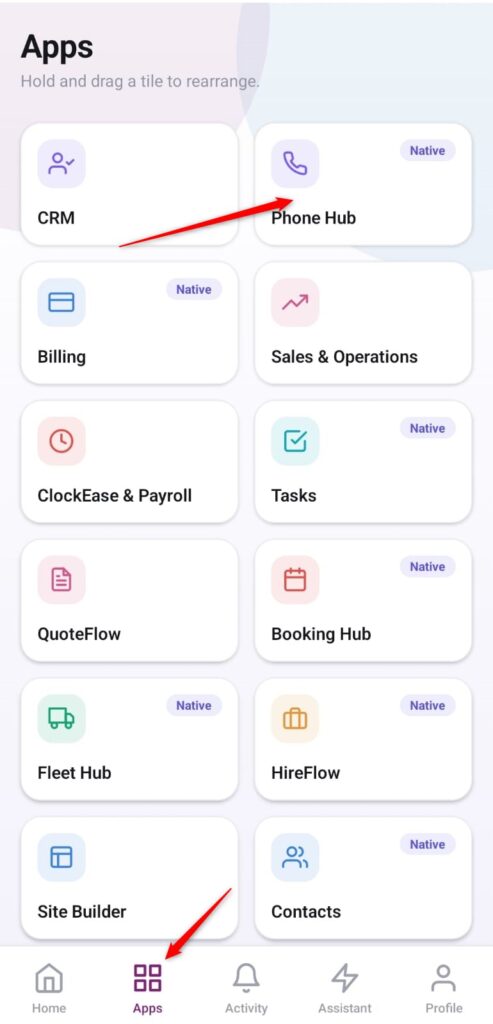
Open the App Directory: On the bottom navigation bar of the application, tap the Apps menu button (represented by the four-square icon).
-
Access the Telephony Center: Within the grid checklist, locate and tap the Phone Hub module card.
-
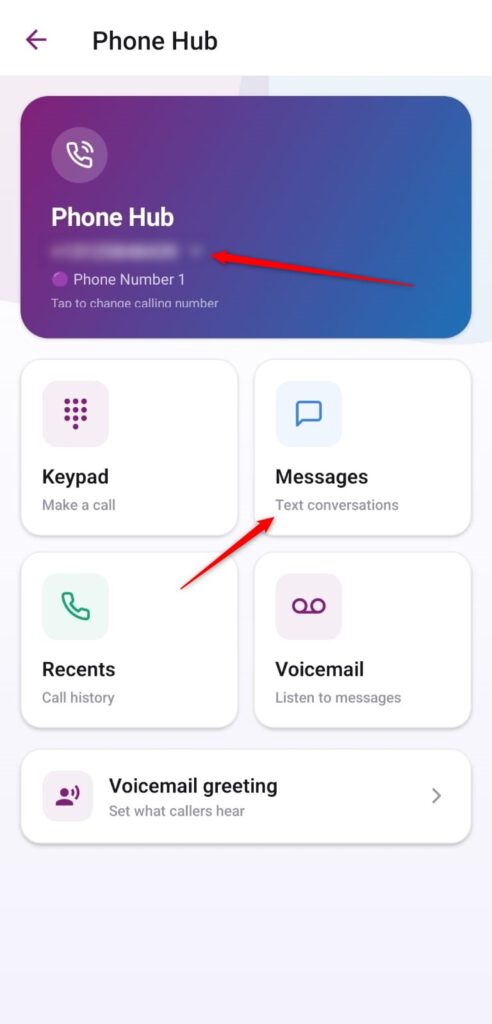
Open Text Conversations: On the primary phone operations screen, tap the Messages module tile.
-
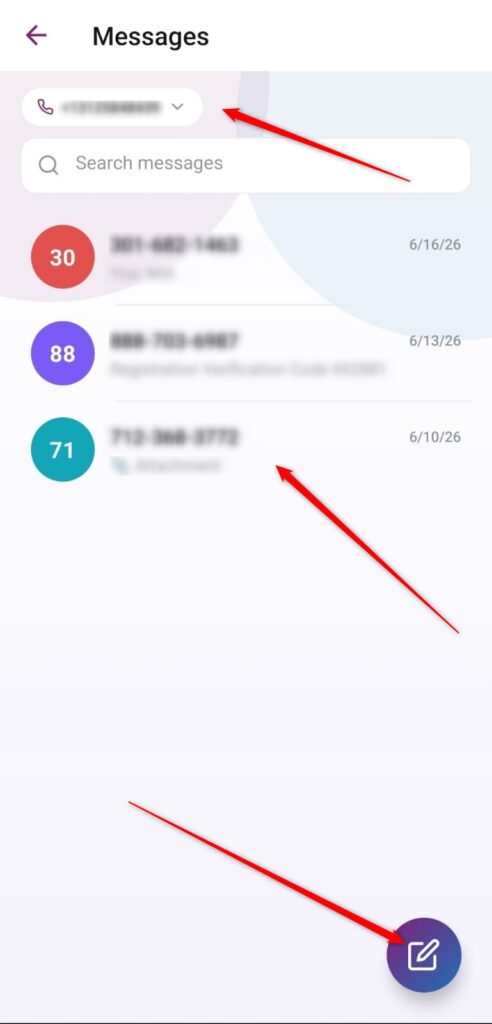
Select or Start a Chat: * Tap directly on any existing conversation block from your recent history list to resume the discussion.
-
If you need to open a brand-new message thread, tap the purple floating action button featuring the paper and pencil icon in the bottom right corner.
-
-
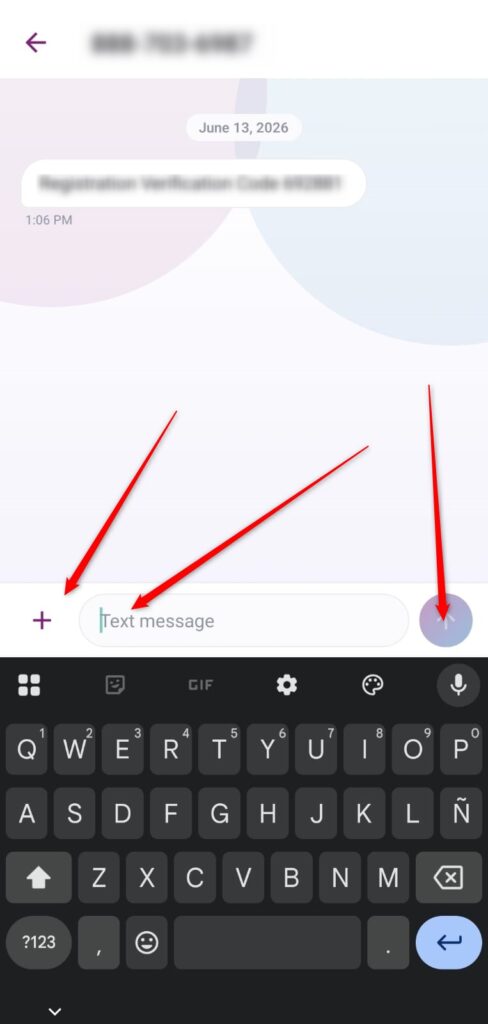
Draft and Attach: Type your message narrative directly inside the white input field that reads Text message. If you need to append an asset, file, or image, tap the
+button positioned to the immediate left of the text bar. -
Send: Once your message draft is ready, tap the circular purple action button featuring the upward arrow icon on the right side to deploy it immediately.