
Categories
 Profile
 Contacts
- Users
- How to add a new contact?
- How to edit a contact?
- How to view a contact’s full information?
- How to import contacts from a CSV file?
- Managers
- How do I manage contact labels?
- How do I manage business contact categories?
- How do I import or export my contacts?
- How do I manage social networks for contacts?
- How do I add dashes to format phone numbers?
- How do I manage contact types?
 Notes & Cloud Files
 CRM
CRM- Users
- How to quickly add a lead?
- Can I group my prospects?
- How to convert a client into a prospect to sell another product?
- I’m the Sales Manager and have several sales executives, how can I reassign a lead from one to another?
- How do I move a lead between different CRM steps?
- How do I register an event or activity for a prospect?
- How can I view the list of products and services?
- Managers
- How can I manage prospect stages?
- How can I manage prospect events and activities?
- How can I manage prospect statuses?
- How can I manage work order statuses?
 Billing
- Users
- How to create an invoice?
- How to print an invoice?
- How to download an invoice as a PDF?
- How to resend an invoice?
- How to pay an invoice?
- How to view the list of payments?
- How to view the list of receipts?
- How to add a receipt?
- How to import invoices from Quickbooks?
- How to Manage and Log Expenses?
- How to View and Manage the Operational Ledger?
- Managers
- How can I manage payment terms?
- How can I configure my payment gateways?
- How to Manage and Create Billing Email Templates?
 Quote Flow
 Tasks
Tasks- Users
- How to add a task?
- How to add a project?
- How to start and stop task time?
- How to add a sub-task?
- How to change a task’s status?
- How to Navigate and Switch Task List Views?
- Managers
- How can I manage projects?
- How can I manage task priorities?
- How can I manage task statuses?
- How do I manage common tasks?
- How do I manage task tags?
 ClockEase & Payroll
 Phone Hub
- Users
- How to make a call?
- How to send a text message?
- How to check voicemails?
- How to manage my voicemails?
- How do I mark a text message as unread?
- How to Manage and Configure Voicemail Greetings?
- How to Use AI Actions for Text Messages?
- How to Manage Text Message Reports?
- How to Use AI for Your Voicemails?
- How to Manage SMS Conversations?
- How to Use AI Features for Your Text Messages?
- How to Translate Incoming Text Messages?
- How to manage SMS campaigns?
- How to Use Templates in Text Messages?
- How to Schedule Text Messages for Later Delivery?
- Managers
- How can I manage the system phone numbers?
- How can I manage sms templates?
- How to Access and Filter Call Reports?
 Booking Hub
 Fleet Hub
- Users
- How to add a vehicle?
- How to register vehicle maintenance?
- How to add a checkpoint to a vehicle?
- How to set a reminder for a vehicle?
- How to report an issue with a vehicle?
- How to view full vehicle information?
- Managers
- How can I manage vehicle brands?
- How can I manage vehicle types?
- How can I manage vehicle subtypes?
- How can I manage the service types used in vehicle maintenance?
- How can I view and manage mileage by service and brand?
- How to configure GPS providers?
 HireFlow
 Cybix AI
 Connect
 Administration
- Managers
- Set Up Your Company
- Register Your Main Office and Branches
- Set Up Special Taxes
- Upload Your Products or Services
- Configure Outgoing Email (SMTP)
- Define Units of Measurement
- Define Your Referral Sources
- Define Roles for Your Team and Clients
- Create Individual Access for Each Member of Your Organization or Business
- Create Work Teams
- Activate Automatic Notifications
- Install New Languages
- How to manage employees and contractors profiles?
- How to configure the organization chart?
- How to manage and configure company departments?
- How to manage job positions?
- How to manage and organize workforce teams?
- How to manage the worker types?
- How to configure and manage compensation rate types?
- How to configure workforce rules?
- How to manage the employee statuses?
- How to configure organizational access?
- Guide to Business Permissions in Cybix: Roles, Positions, and Scopes
 Sales & Operations
- Users
- How to create a new work order?
- How to monitor and filter purchase orders?
- How to view and filter sales commissions and bonuses?
- How to add and manage referrals?
- How to copy and distribute the system referral link?
- How to view and check the services and products price list?
- Managers
- How to manage sales email templates?
- How to manage work order statuses?
 Video Meeting
- Cybix App
- Users
- Navigation & Menus Guide
- How to Make a Call Using the App?
- How to Send Text Messages Using the App?
- How to Manage Your Voicemails Using the App?
- How to set up your voicemail greeting in the app?
- How to create an invoice using the app?
- How to access billing reports using the app?
- How to use different views in tasks module in the app?
- How to create a task using the app?
- How to log time on a task in the app
- How to Create a New Booking Event in the app?
- How to Use and Share Your Public Booking Links in the app?
- How to Create Applicant Forms in the app?
- How to Create a New Contact Using the App?
- How to Create Notes Using the App?
- How to Upload Documents to Cloud Files using the app?
- How to Send Messages in Connect using the app?
- How to Use Cybix AI Within the App?
- How to Create a Vehicle using the app?
- How to register a vehicle maintenance using the app?
- How to report a vehicle issue using the app?
- How to create a reminder for a vehicle using the app?
- How to create a checkpoint for a vehicle using the app?
- How to view the attendance calendar in Clockease using the app?
- How to monitor team status using the punchboard in the app?
- How to request time off in Clockease using the app?
- How to create a prospect in CRM using the app?
- How to move stages and change statuses in CRM using the app?
- About the development company.
- About my Membership
How to Upload Documents to Cloud Files using the app?
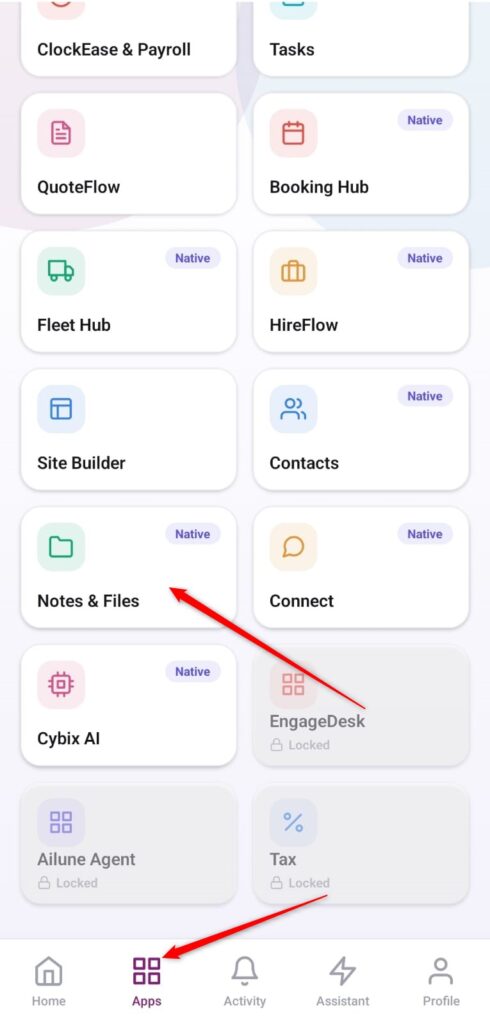
- Open the App Directory: On the bottom navigation bar of the application, tap the Apps menu button represented by the four-square layout icon.
-
Access Cloud Files: Within the active operational checklist grid, locate and tap the Cloud Files module card.
-
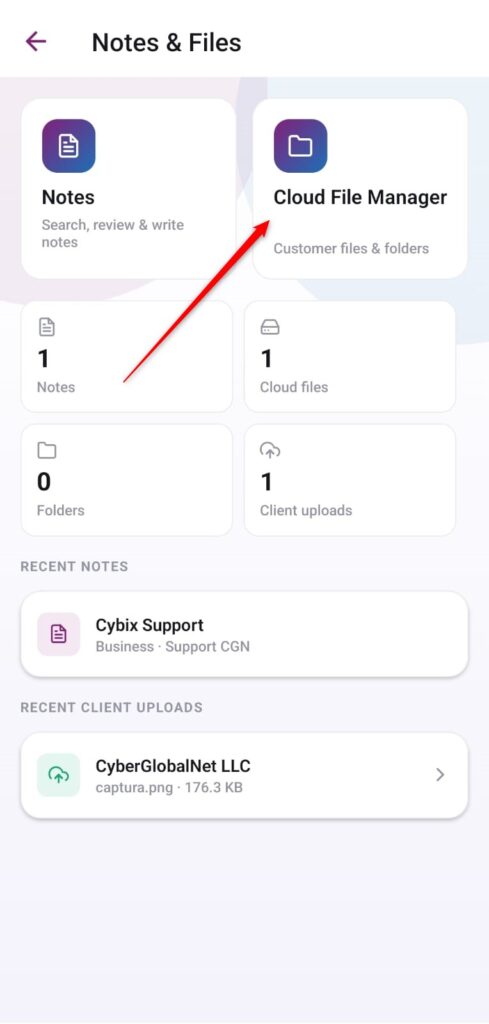
Access the Files Workspace: Within the operational grid checklist, locate and tap the Cloud Files Manager card.
-
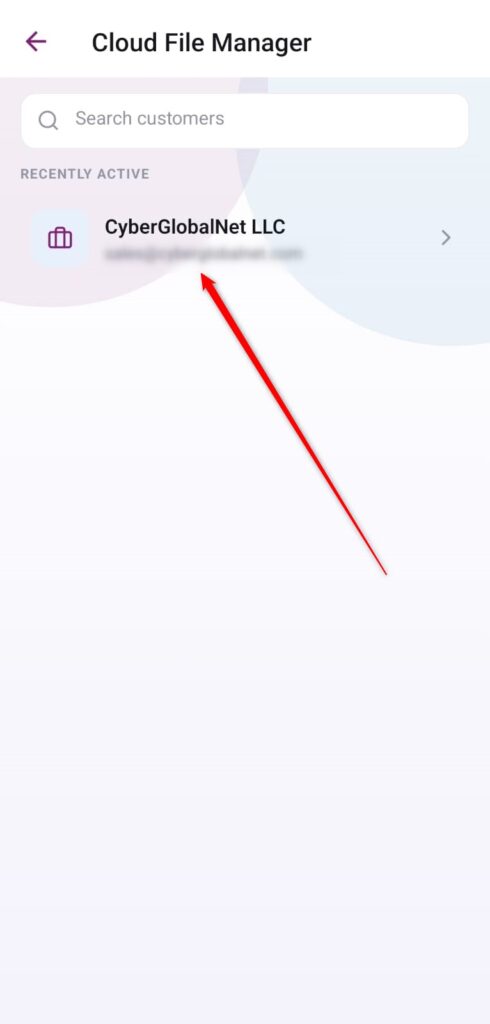
Launch the Upload Action: On your primary storage directory view, tap the purple floating action button featuring the
+icon situated in the bottom right corner. -
Select the File Trigger: From the action menu layout that rolls up, tap the Upload file selection row (Upload documents or images).
-
Commit the Media Asset: Choose the target document or media file directly from your mobile device’s native local storage or system gallery to deploy and save the file onto your cloud infrastructure.
70