Categories
 Profile
 Contacts
 Notes & Cloud Files
 CRM
CRM Billing
 Quote Flow
 Tasks
Tasks ClockEase & Payroll
 Phone Hub
 Booking Hub
 Fleet Hub
 HireFlow
 Cybix AI
 Connect
 Administration
 Sales & Operations
 Video Meeting
- Cybix App
- About the development company.
- About my Membership
The project management module allows you to organize and audit your active assignments utilizing five distinct visualization formats. Follow these steps to navigate and alternate your view settings:
-
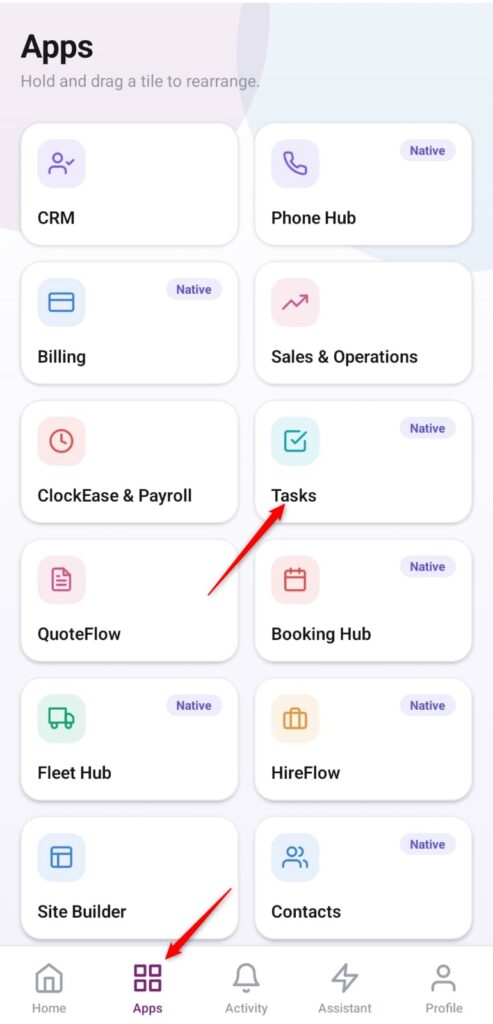
Open the App Directory: On the bottom navigation bar of the application, tap the Apps menu button (represented by the four-square icon).
-
Access the Tasks Workspace: Within the grid checklist, locate and tap the Tasks module card.
-
Toggle Your Preferred Layout View: Below the top search bar area, locate the horizontal scrolling view selector options. Tap any of the highlighted purple buttons to alternate your operational layout instantly:
-
List: Displays your assigned items in a clean, sequential row log, ideal for quick routine scanning.
-
-
-
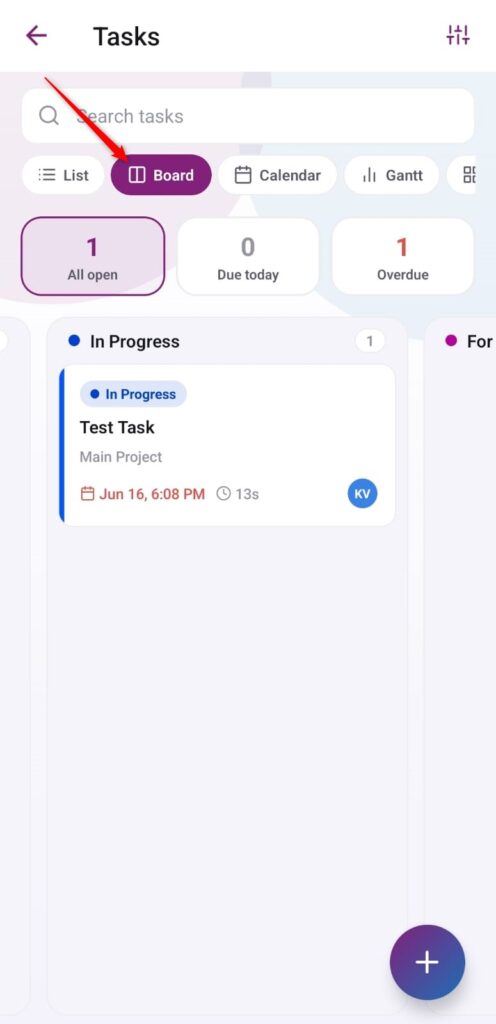
Board (Kanban): Organizes active items into distinct vertical column stages based on workflow progression statuses (such as In Progress or For Review), allowing interactive card-tracking.
-
-
-
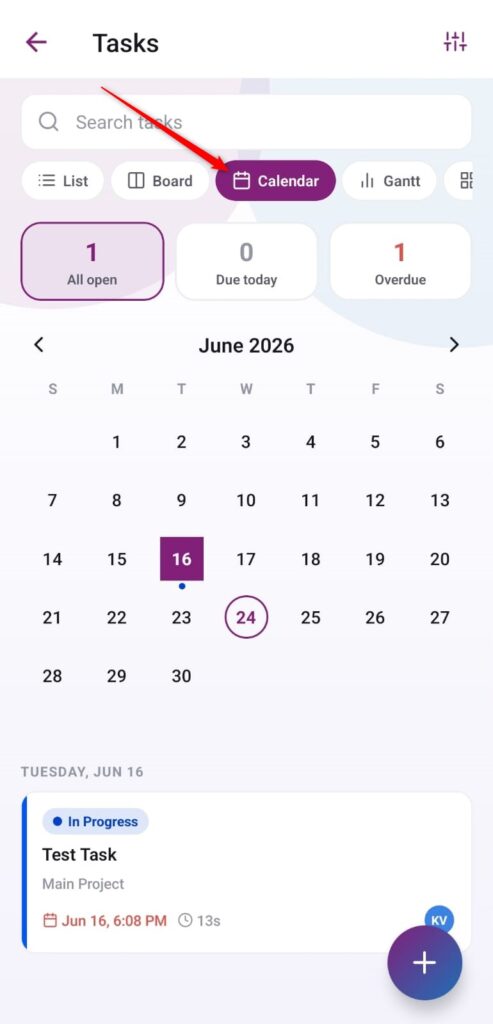
Calendar: Maps out your deliverables directly onto a comprehensive monthly matrix grid. Active deadlines show up with tracking indicators, and tapping a calendar day unfolds its specific assignment details on the lower card area.
-
-
-
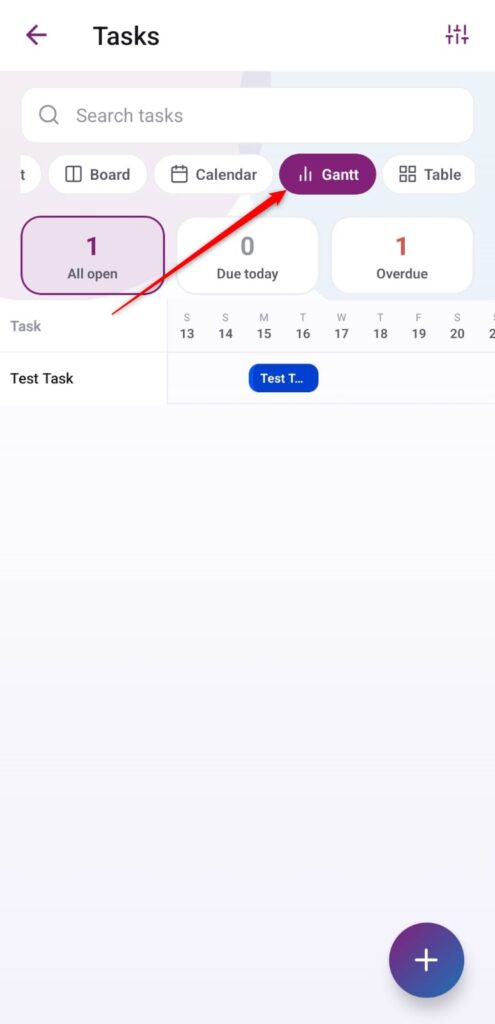
Gantt (Timeline Chart): Projects your work items horizontally across a rolling calendar timeline, perfect for tracking task durations, delivery windows, and project overlap periods.
-
-
-
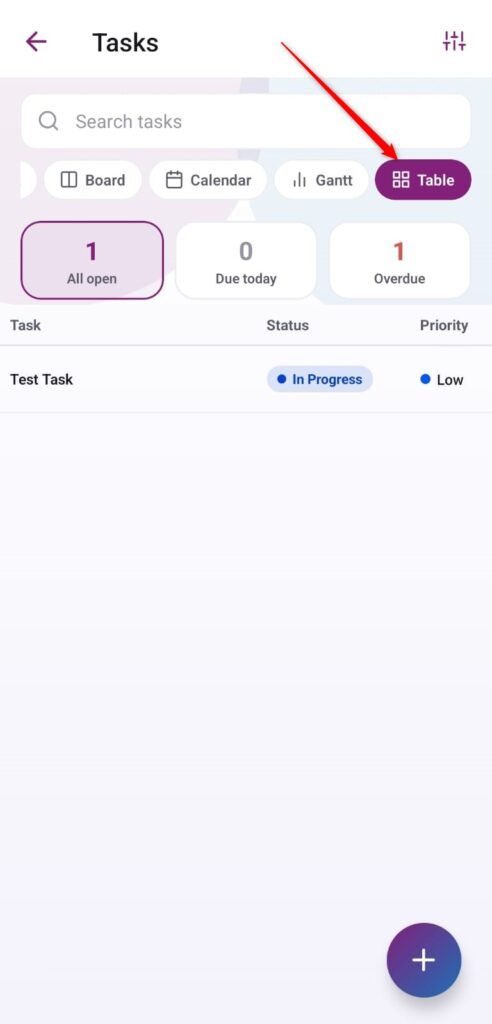
Table: Arranges your data in a structured spreadsheet layout, displaying detailed columns for key tracking parameters like Task title, current Status, and Priority rankings.
-