Categories
 Profile
 Contacts
 Notes & Cloud Files
 CRM
CRM Billing
 Quote Flow
 Tasks
Tasks ClockEase & Payroll
 Phone Hub
 Booking Hub
 Fleet Hub
 HireFlow
 Cybix AI
 Connect
 Administration
 Sales & Operations
 Video Meeting
- Cybix App
- About the development company.
- About my Membership
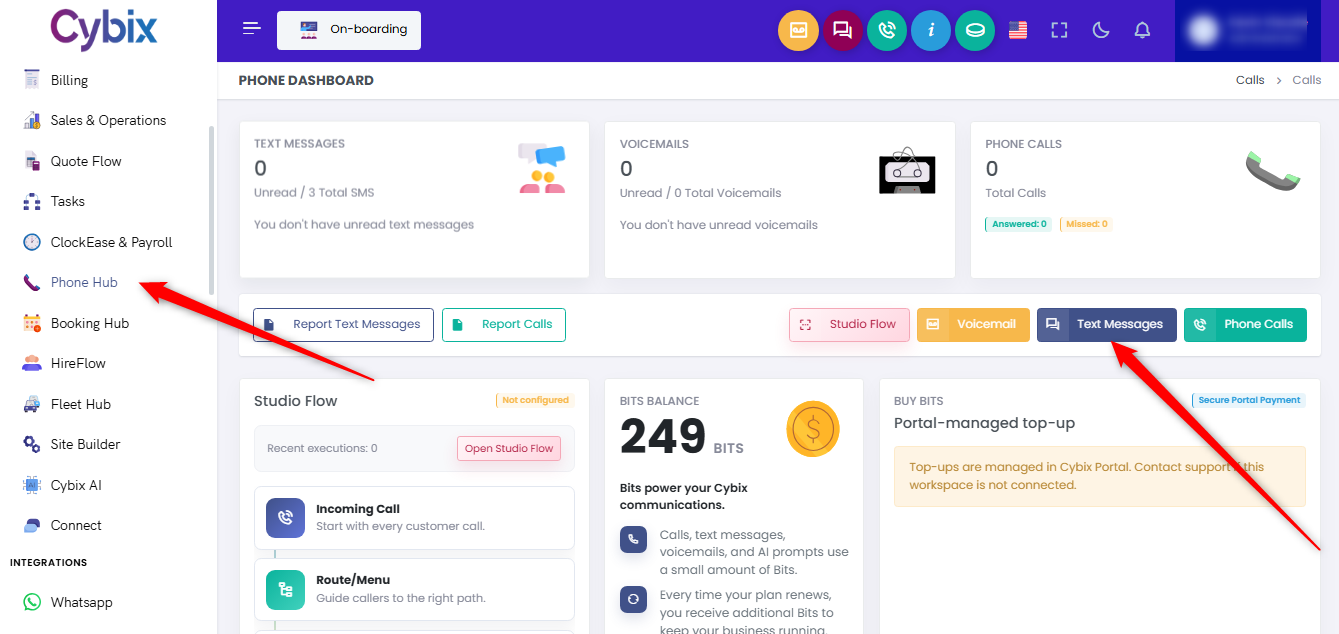
From the left sidebar, click on the Phone Hub module. Within the main phone dashboard interface, navigate to the shortcut option buttons positioned in the middle right and click on the dark blue Text Messages button.
Once inside the conversation inbox workspace, select the active chat entry where you want to draft or edit a message. Type your text in the text entry area at the bottom of the screen.
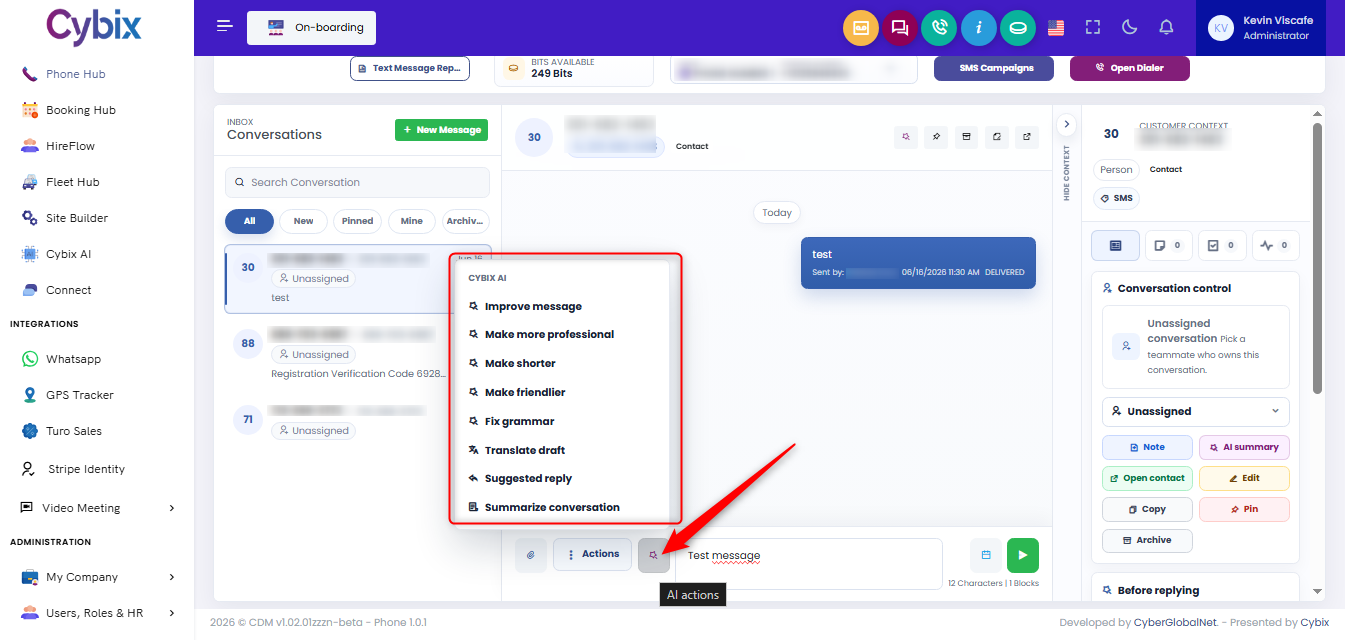
Before sending, click the small magic wand icon (AI actions) located directly to the left of the text input field. A contextual pop-up menu will display several automated options to optimize your communication:
-
Improve message: Refines the overall flow and clarity of your drafted text.
-
Make more professional: Adjusts the tone to suit corporate or formal interactions.
-
Make shorter: Condenses the text into a brief, direct point.
-
Make friendlier: Gives the draft a warmer, more approachable tone.
-
Fix grammar: Automatically corrects spelling errors and syntax issues.
-
Translate draft: Converts your drafted message into a target language.
-
Suggested reply: Evaluates the incoming text to provide an automated response option.
-
Summarize conversation: Generates a brief overview of the message history.
Select the desired optimization option to automatically transform or analyze your text before clicking the green play/send button.