Categories
 Profile
 Contacts
 Notes & Cloud Files
 CRM
CRM Billing
 Quote Flow
 Tasks
Tasks ClockEase & Payroll
 Phone Hub
 Booking Hub
 Fleet Hub
 HireFlow
 Cybix AI
 Connect
 Administration
 Sales & Operations
 Video Meeting
- Cybix App
- About the development company.
- About my Membership
Follow this structural workflow to draft, categorize, and register entries within your notebook layout workspace:
-
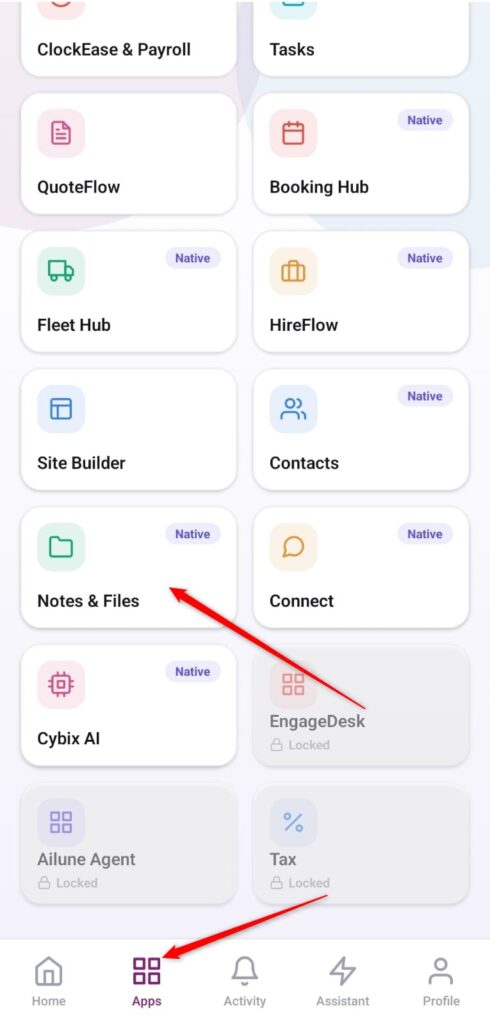
Open the App Directory: On the bottom navigation bar of the application, tap the Apps menu button represented by the four-square layout icon.
-
Access the Notes & Files workspace: Within the operational grid checklist, locate and tap the Notes & Files module card.
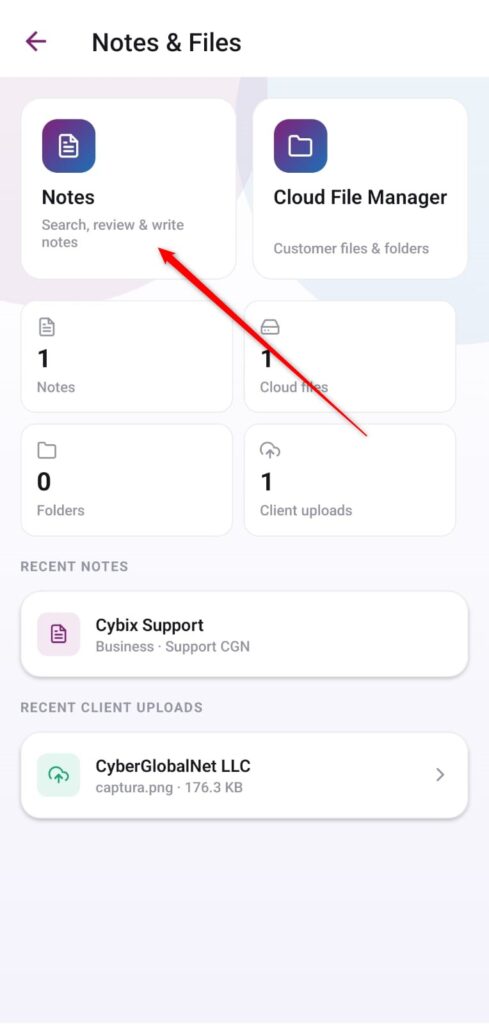
- Access the Notes manager: Within the module, locate and tap the Notes card.
-
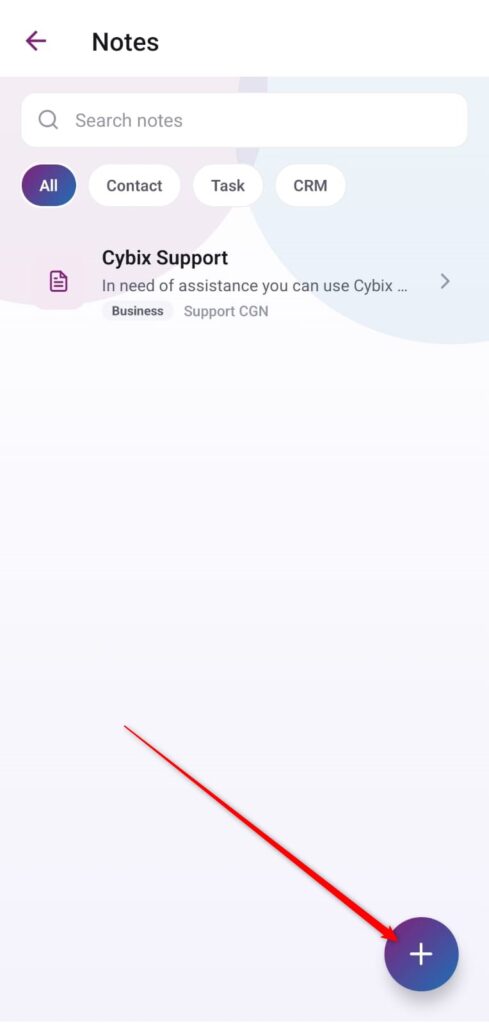
Launch a New Note Form: On your primary dashboard file storage view, tap the purple floating action button featuring the
+icon positioned in the bottom right corner.
-
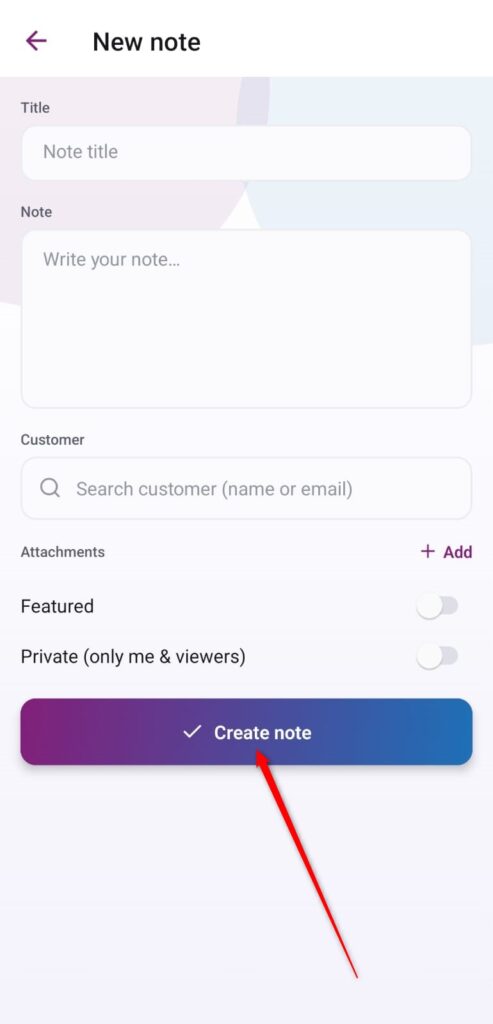
Draft Your Text Content: Inside the text entry canvas layout, input a definitive headline inside the Title field box, and type your comprehensive logs inside the larger text space labeled Write a note.
-
Link to a Target Master File (Optional): To keep your files structured, you can tap the Project dropdown selection field to anchor your text entry onto a corporate master project workspace.
-
Commit and Save the Entry: Review your written composition layout on the screen and tap the prominent purple action bar at the bottom labeled Create note to save the file permanently.