Categories
 Profile
 Contacts
 Notes & Cloud Files
 CRM
CRM Billing
 Quote Flow
 Tasks
Tasks ClockEase & Payroll
 Phone Hub
 Booking Hub
 Fleet Hub
 HireFlow
 Cybix AI
 Connect
 Administration
 Sales & Operations
 Video Meeting
- Cybix App
- About the development company.
- About my Membership
-
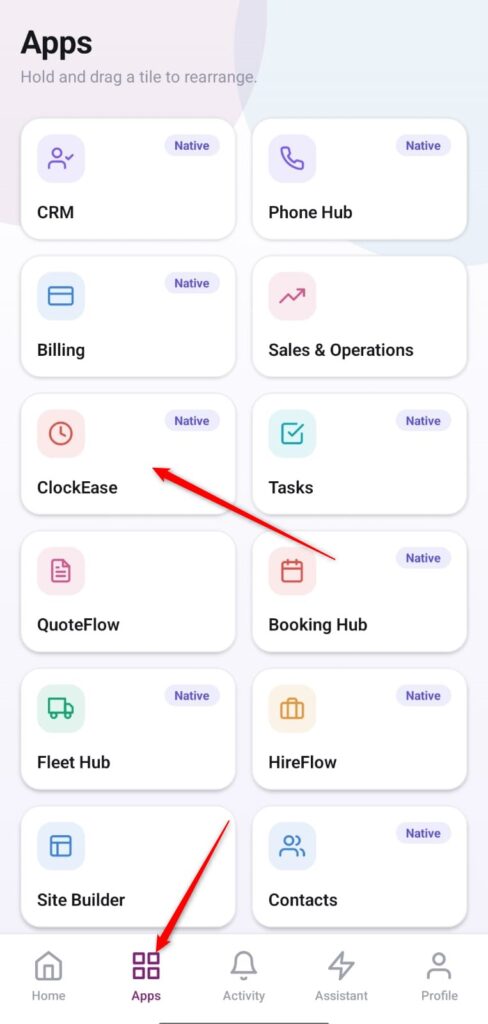
Open the App Directory: On the bottom navigation bar of the application, tap the Apps menu button represented by the four-square layout icon.
-
Access ClockEase: Within the active operational checklist grid, locate and tap the ClockEase module card.
-
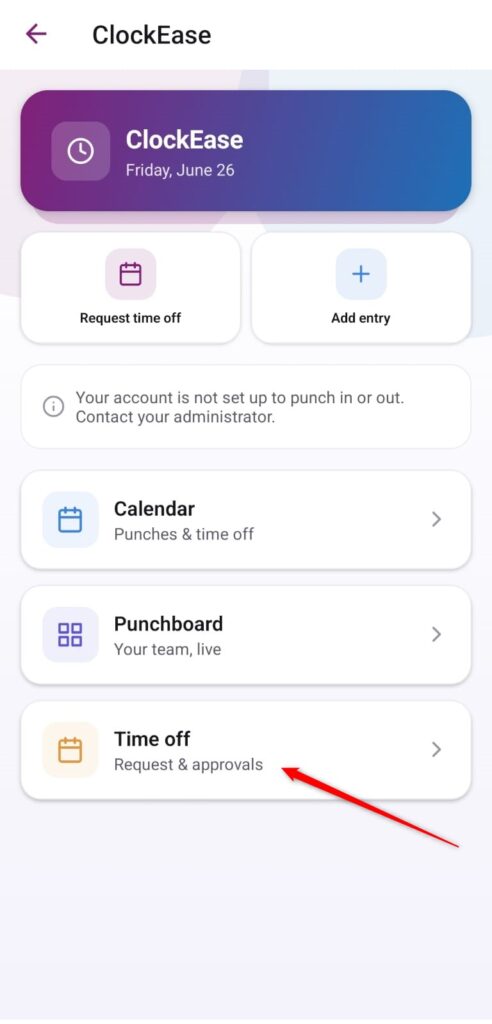
Open the Time Off Section: From the primary ClockEase dashboard, scroll down and select the management row labeled Time off (Request & approvals).
-
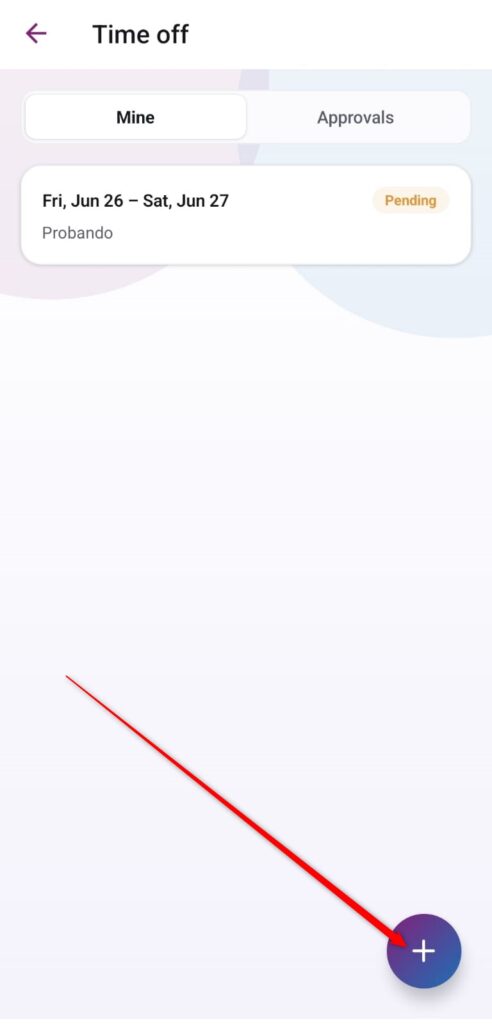
Launch a New Request Form: Inside your log directory dashboard view, tap the purple floating action button featuring the
+icon situated in the bottom right corner.
-
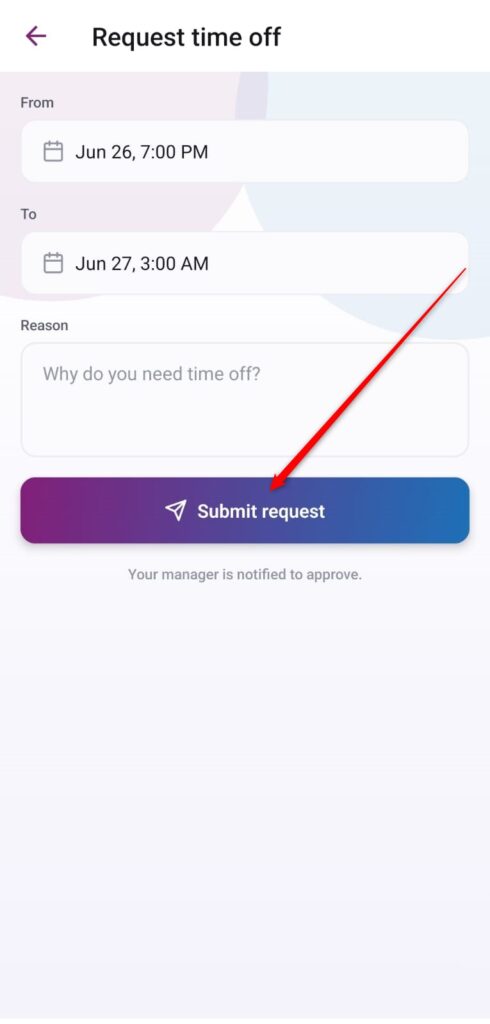
Configure Your Tracking Variables: Complete the timeframe parameters and context reasons displayed on the layout creation screen:
-
From: Tap the date picker field box to determine your target leave start date and exact hour configuration.
-
To: Tap the corresponding end box to specify your scheduled return date and check-in hour value.
-
Reason: Type out a detailed description context explaining why you need the operational absence approved.
-
-
Submit the Request: Review your configured variables across the interface layout and tap the prominent purple action bar at the bottom labeled Submit request to instantly dispatch the logging and notify your administrator.