Categories
 Profile
 Contacts
 Notes & Cloud Files
 CRM
CRM Billing
 Quote Flow
 Tasks
Tasks ClockEase & Payroll
 Phone Hub
 Booking Hub
 Fleet Hub
 HireFlow
 Cybix AI
 Connect
 Administration
 Sales & Operations
 Video Meeting
- Cybix App
- About the development company.
- About my Membership
-
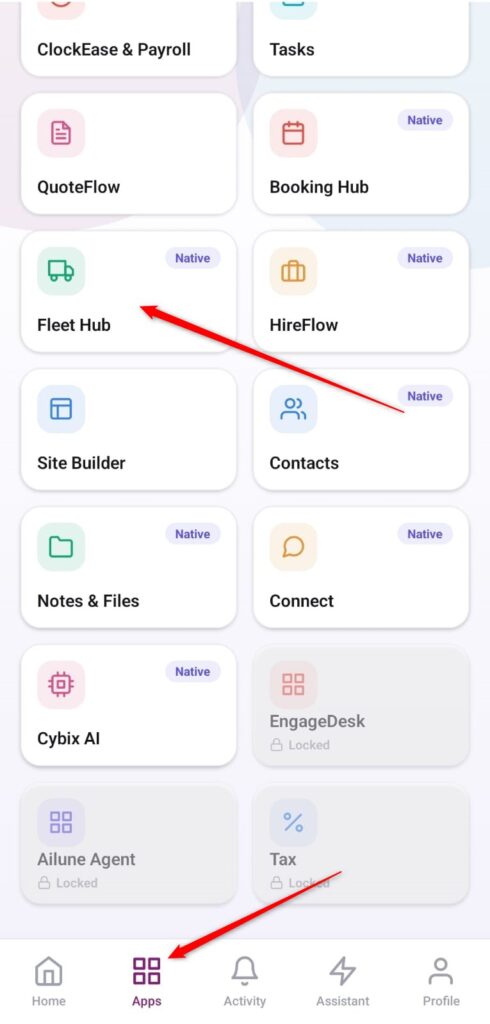
Open the App Directory: On the bottom navigation bar of the application, tap the Apps menu button represented by the four-square layout icon.
-
Access the Fleet Hub: Within the active operational checklist grid, locate and tap the Fleet Hub module card.
-
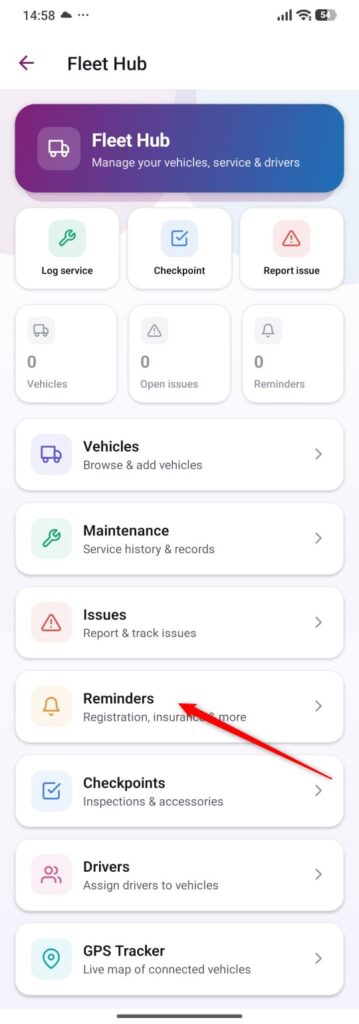
Open the Reminders Section: From the primary Fleet Hub dashboard, scroll down and select the management row labeled Reminders (Registration, insurance & more).
-
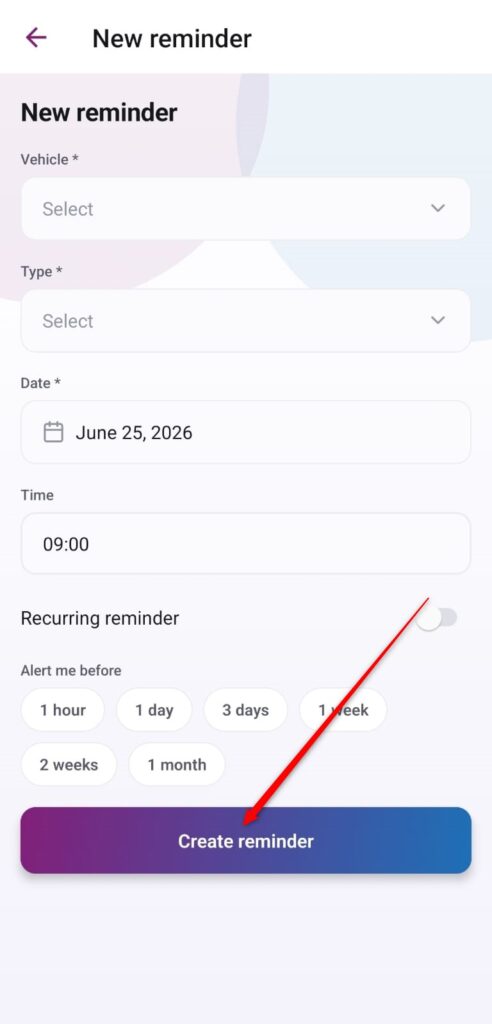
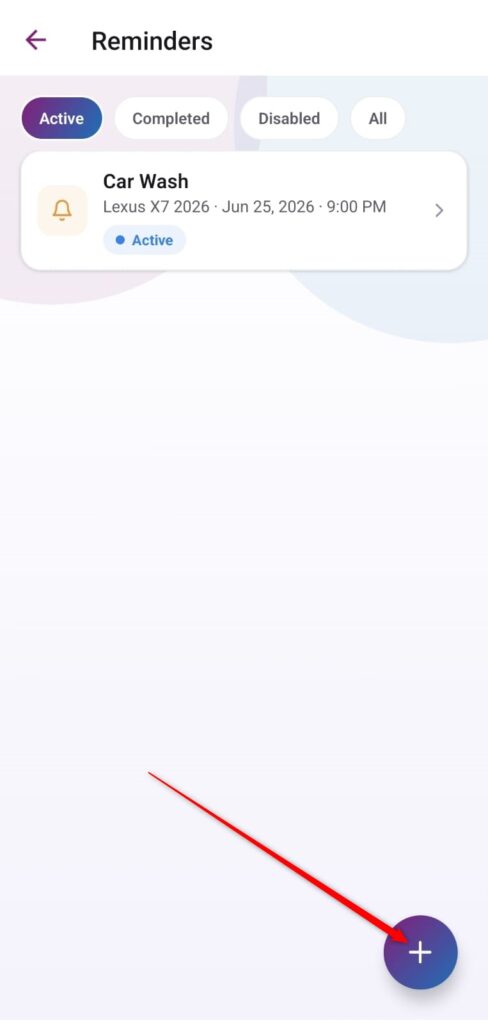
Launch a New Reminder Form: Inside your active reminders library view, tap the purple floating action button featuring the
+icon situated in the bottom right corner.
-
Complete Form Parameters: Fill out the mandatory and optional properties shown on the layout creation screen:
-
Vehicle: Tap the dropdown selector to assign the specific targeted asset profile.
-
Type: Select the type of alert you are logging (e.g., Insurance, Registration, or Custom).
-
Due Date: Select the deadline tracking date using the built-in calendar picker card.
-
Recurrent: Toggle the switch active if you need this operational alert to repeat periodically over time.
-
-
Finalize and Submit: Review all your configured parameters on the screen layout and tap the prominent purple action bar at the bottom labeled Create reminder to permanently save the log entry.