Categories
 Profile
 Contacts
 Notes & Cloud Files
 CRM
CRM Billing
 Quote Flow
 Tasks
Tasks ClockEase & Payroll
 Phone Hub
 Booking Hub
 Fleet Hub
 HireFlow
 Cybix AI
 Connect
 Administration
 Sales & Operations
 Video Meeting
- Cybix App
- About the development company.
- About my Membership
-
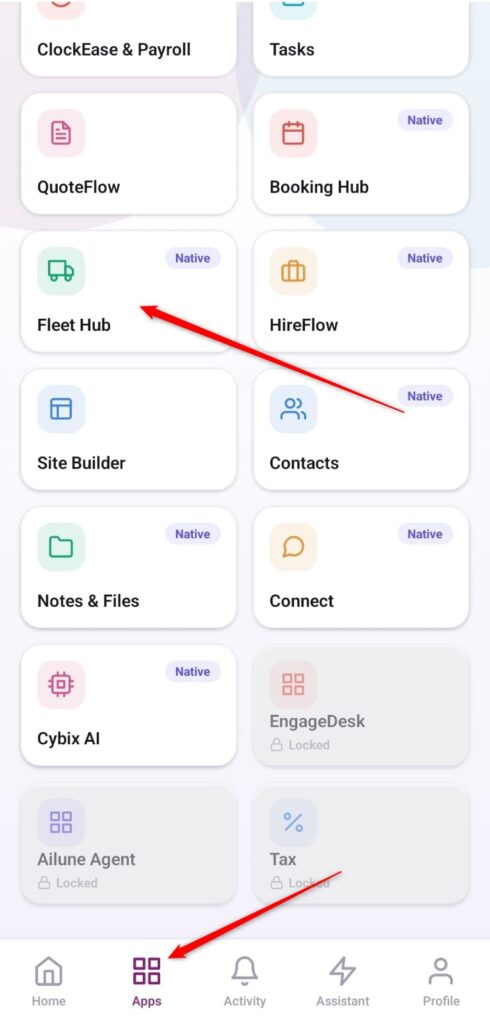
Open the App Directory: On the bottom navigation bar of the application, tap the Apps menu button represented by the four-square layout icon.
-
Access the Fleet Hub: Within the active operational checklist grid, locate and tap the Fleet Hub module card.
-
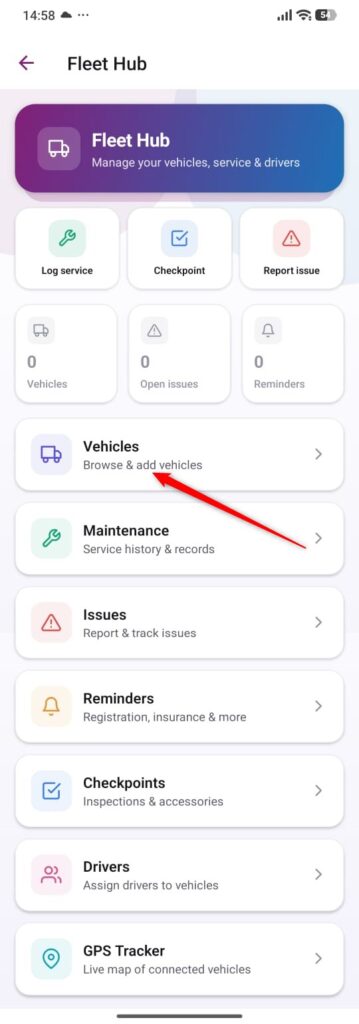
Enter the vehicles list: Click on the Vehicles card.
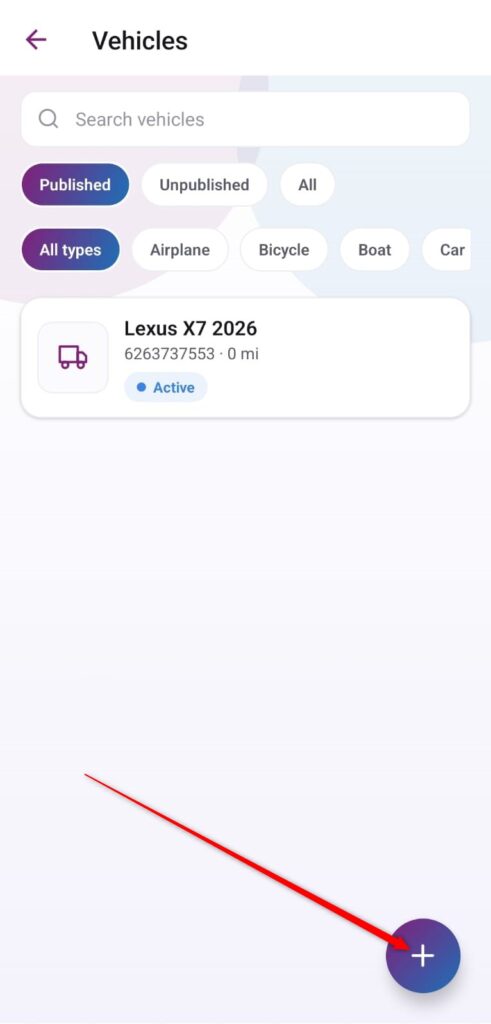
- Launch a New Vehicle Form: On your primary vehicles database directory view, tap the purple floating action button featuring the
+icon in the bottom right corner.
-
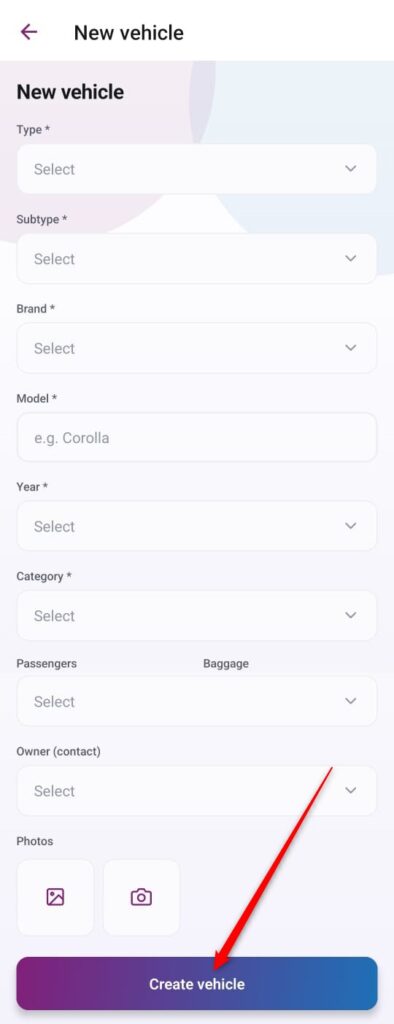
Input Core Vehicle Fields: Fill out the mandatory identification profile parameter under Plate (indicated with an asterisk). You can optionally append tracking text data inside the Brand, Model, and Color entry inputs.
-
Configure Specific Attributes: Scroll down to select your asset group properties using the Vehicle type dropdown panel, and type the required data inside the Year entry field.
-
Commit and Save the Vehicle: Review your completed fields across the creation form layout and tap the prominent purple action bar at the bottom labeled Create vehicle to finalize the asset logging.