Categories
 Profile
 Contacts
 Notes & Cloud Files
 CRM
CRM Billing
 Quote Flow
 Tasks
Tasks ClockEase & Payroll
 Phone Hub
 Booking Hub
 Fleet Hub
 HireFlow
 Cybix AI
 Connect
 Administration
 Sales & Operations
 Video Meeting
- Cybix App
- About the development company.
- About my Membership
Follow this structural workflow to chat with your team or internal assistance center using the messaging platform layout interface:
-
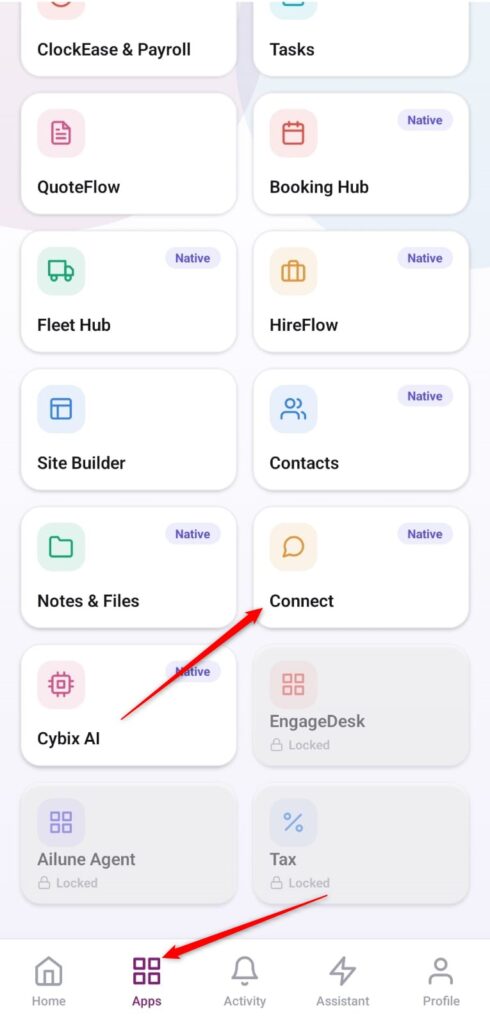
Open the App Directory: On the bottom navigation bar of the application, tap the Apps menu button represented by the four-square layout icon.
-
Access the Connect Workspace: Within the active tools checklist grid, locate and tap the Connect module card.
-
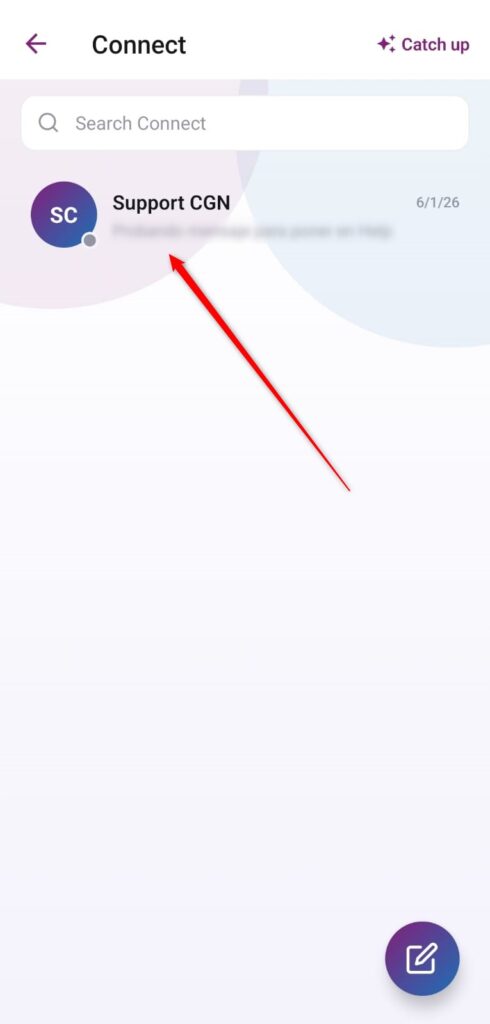
Select Your Targeted Chat: From your internal conversations inbox log, tap directly on the specific channel or teammate entity you need to contact (e.g., “Support CGN”).
-
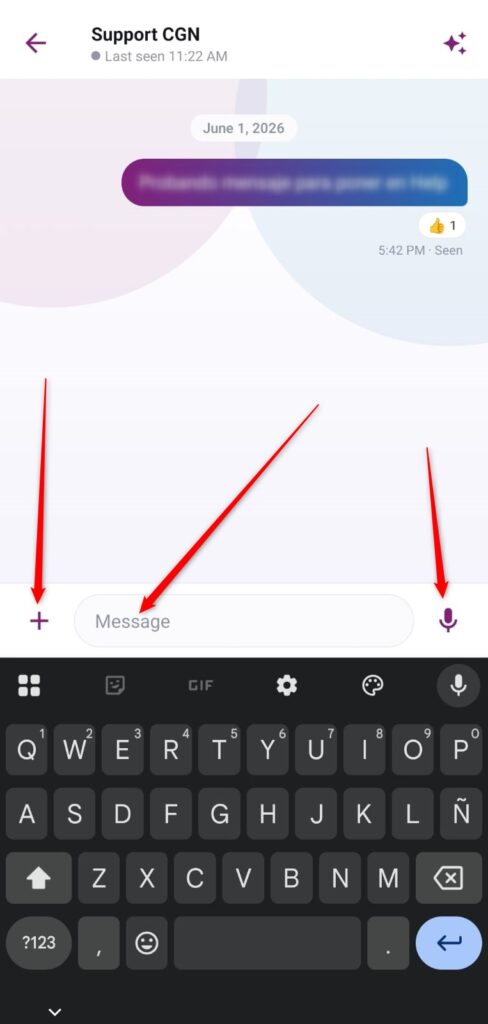
Draft Your Message: Tap inside the lower chat text box labeled Message and type out your text parameters using the digital keyboard.
-
Append Assets or Files: If you require uploading an image, asset, or documentation file to the thread, tap the
+action button positioned to the immediate left of the input text bar. -
Record a Voice Note: To dispatch an audio note instead of standard text, utilize the microphone icon located at the far right section of the chat bar.
-
Send: Press the dynamic send icon on your screen or hit the input return key on your device keyboard to deploy the content instantly.